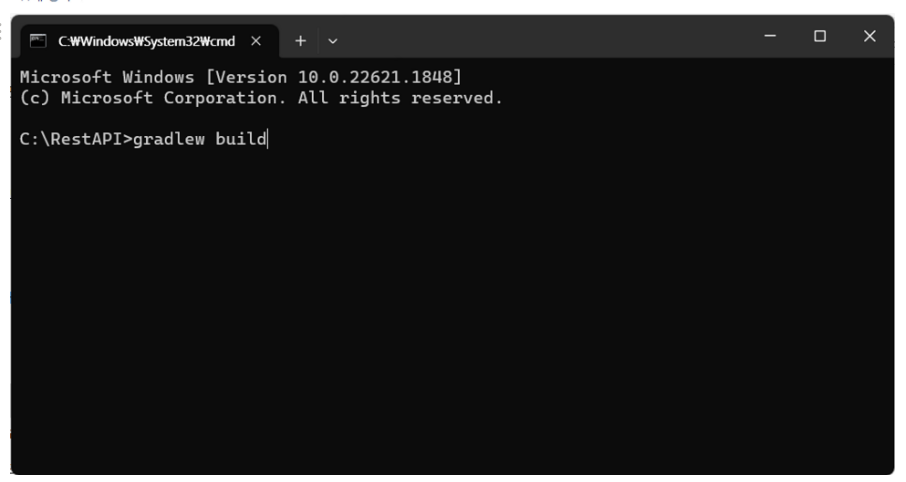
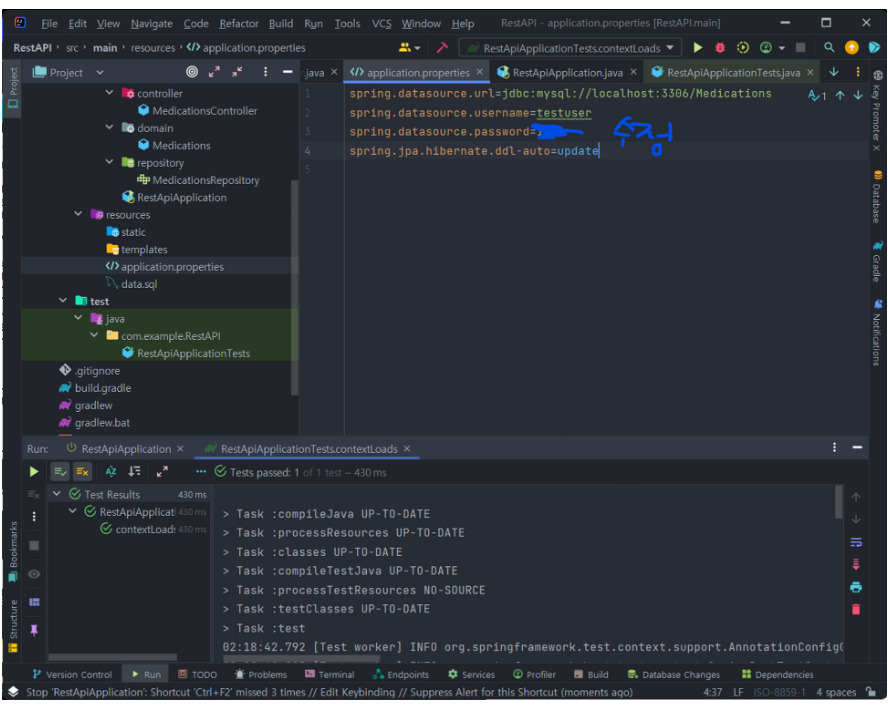
1. Spring-Boot JAR 파일로 내보내기

자세한 설명은 해당 링크 참조: https://suhanlim.tistory.com/192

만약 GitHub에 있는 코드 그대로 사용시 해당 오류가 발생할 수 있는데 프로그램의 단위테스트 자체가 실패했다는 의미이므로 DB 설정 부분을 지우거나 기존 실습 했던 값으로 바꿔야 한다.

드디어 대망의 jar 파일 생성완료

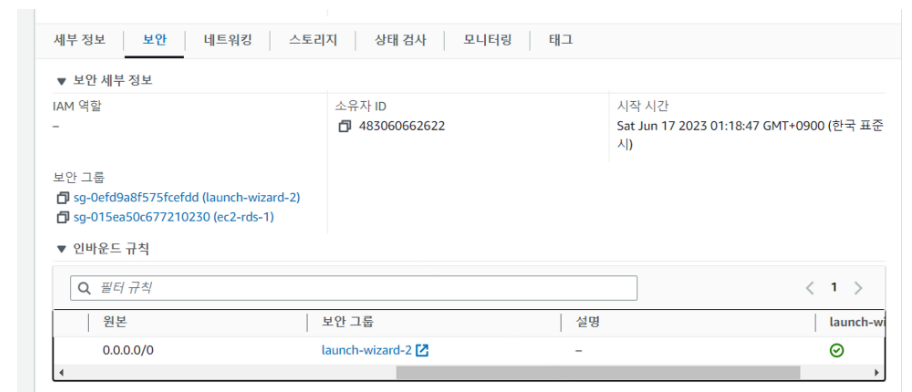
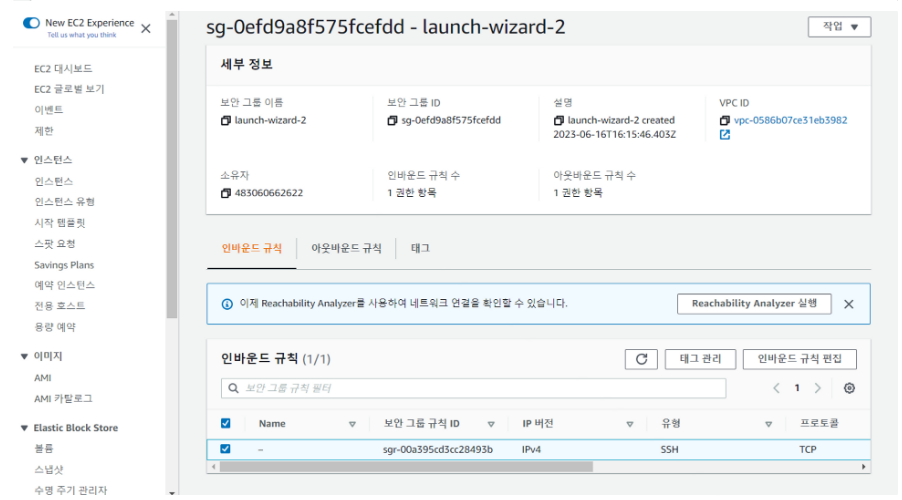
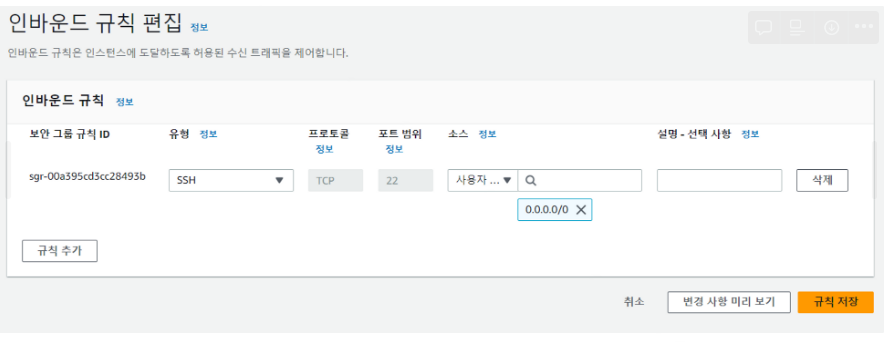
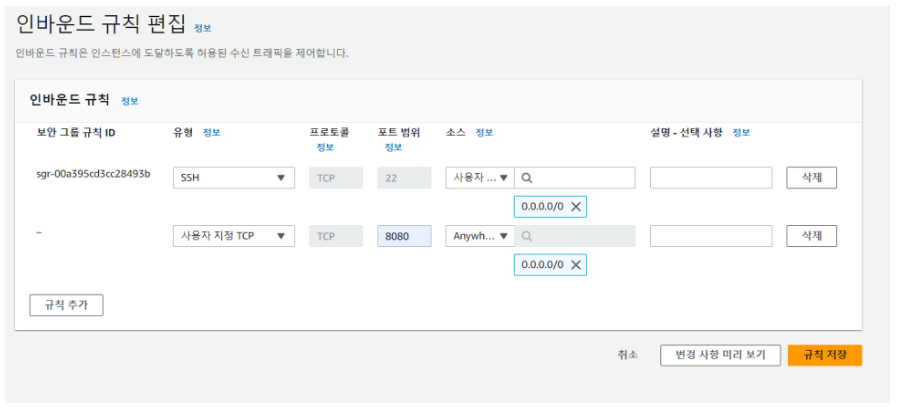
2. EC2 인바운드 규칙 추가

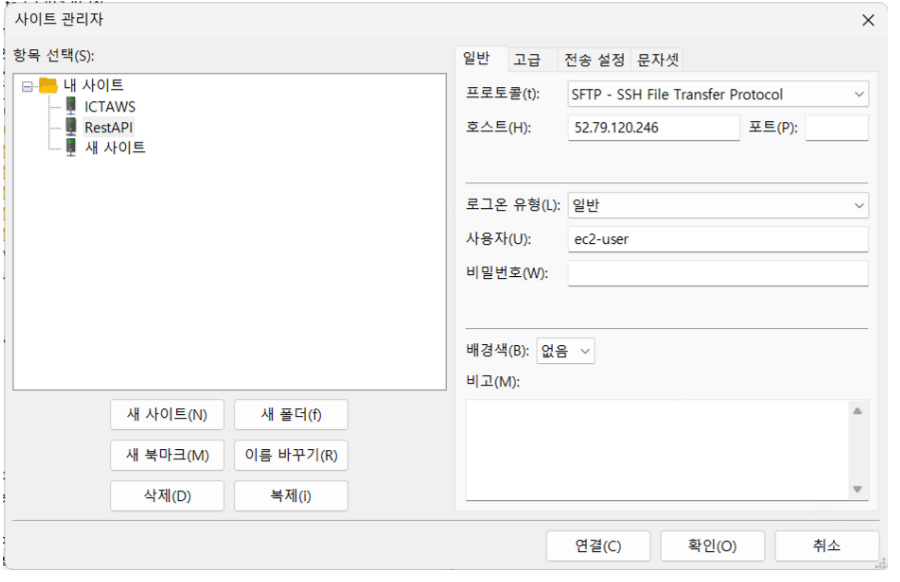
3. FileZilla를 사용하여 jar 파일을 EC2 내부로 이동

FileZilla 대신 git을 사용하여 작업하여도 된다.

https://filezilla-project.org/download.php?platform=win64

도움을 받은 글: https://app-developer.tistory.com/93

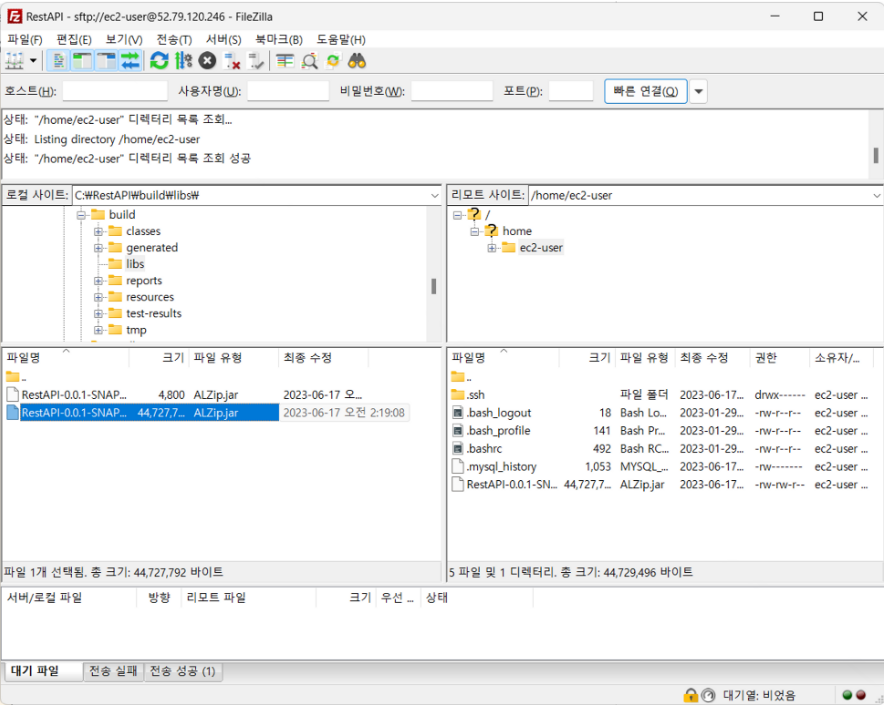
더블 클릭으로 파일 전송

4. EC2에 Java 설치 및 jar 파일 실행

파일 전송 확인

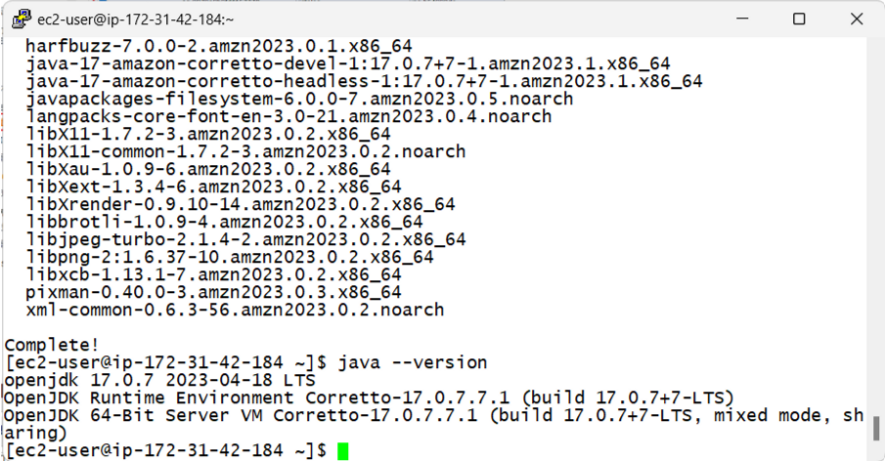
sudo yum install java-17-amazon-corretto-devel

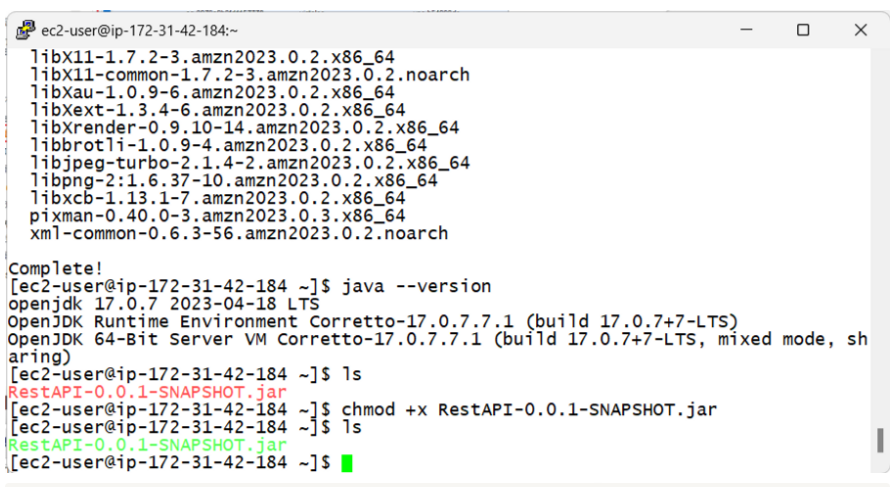
java17 설치 확인 후 chmod +x 파일명.jar 로 실행 권한 부여

java -jar 파일명.jar --spring.datasource.url=jdbc:mysql://엔드포인트:3306/데이터베이스 이름 --spring.datasource.username=유저명 --spring.datasource.password=비밀번호

프로젝트 실행 완료

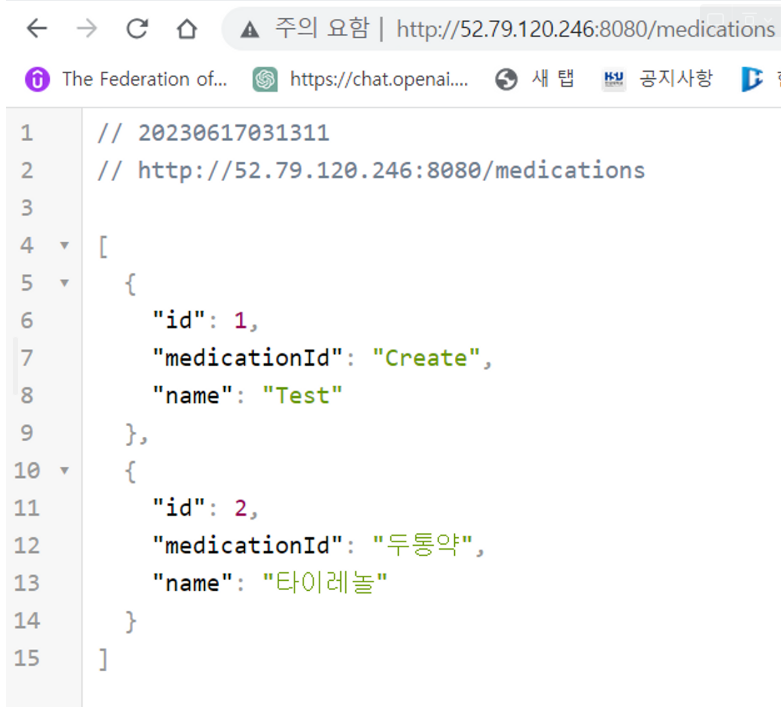
5. 테스트

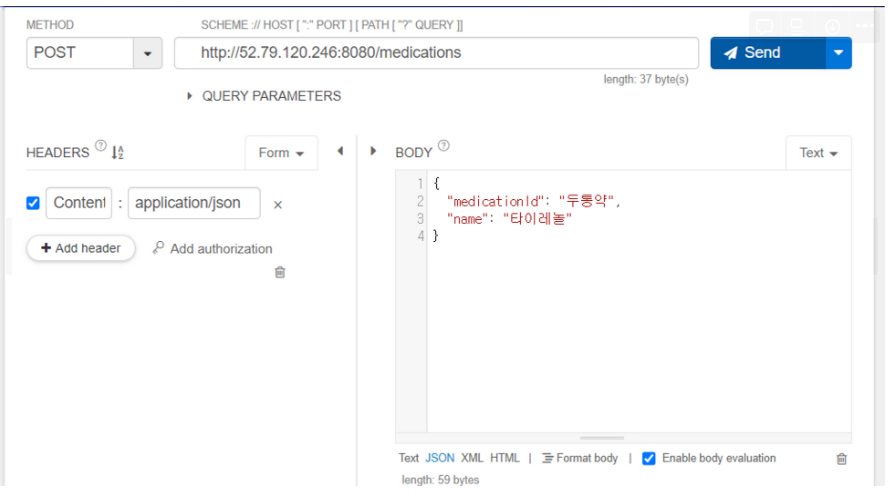
http://EC2 IP:8080/medications

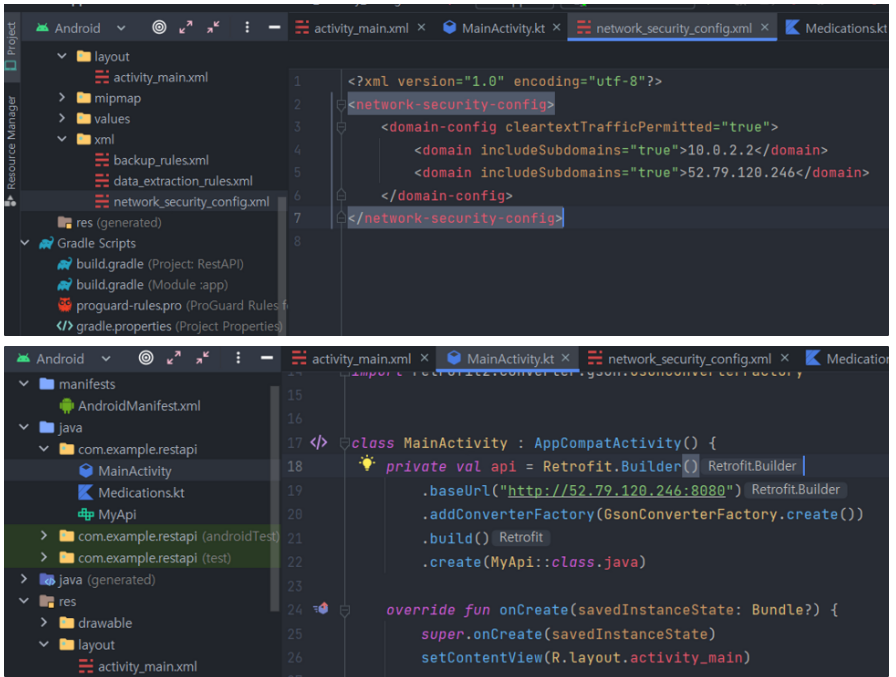
6. 안드로이드 프로그램 url 주소 수정

배포 성공!

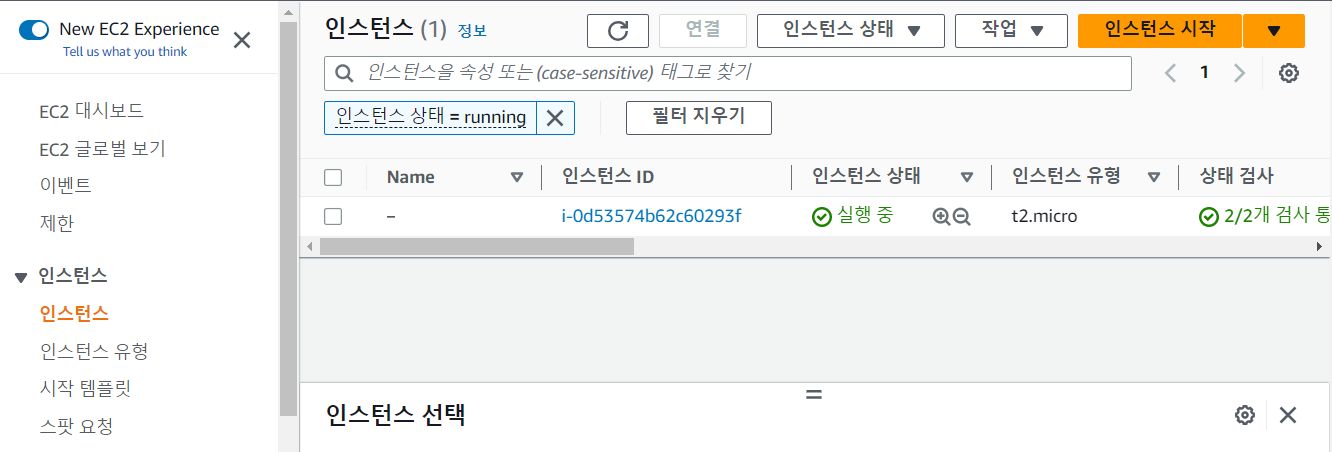
1. EC2 실행

(인스턴스 실행)

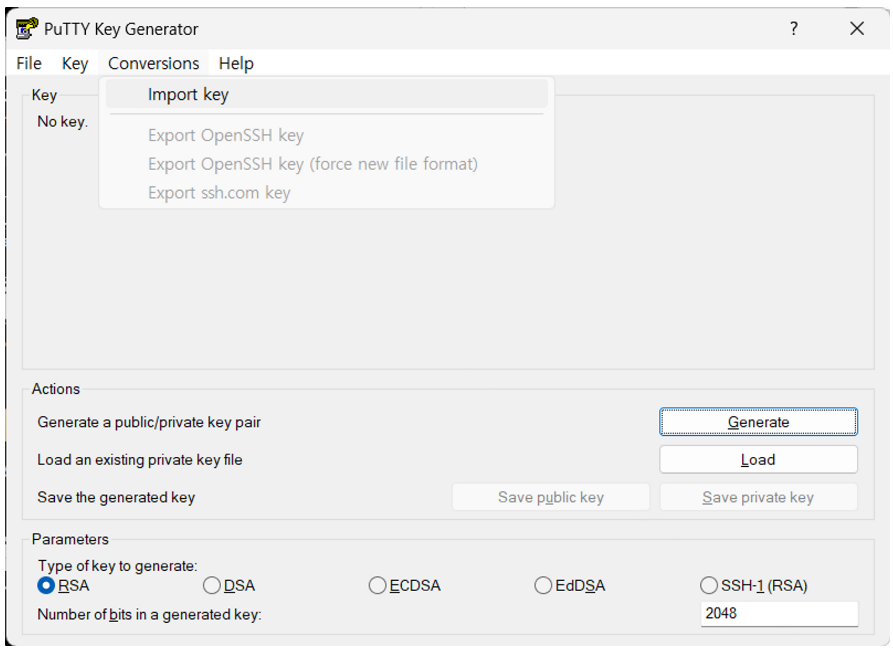
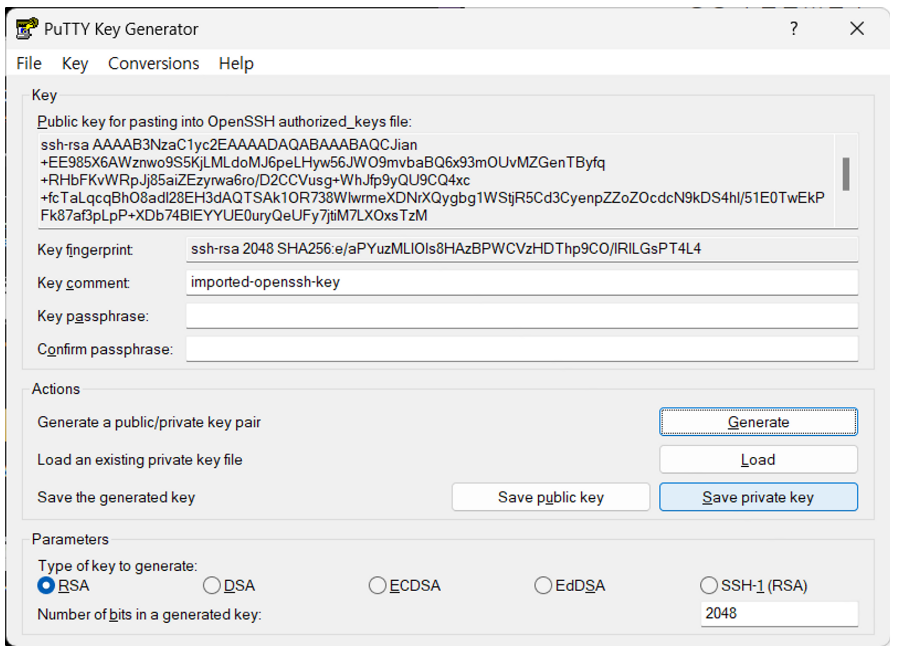
2. Puttygen, Putty 다운로드 후 Puttygen 실행

https://www.puttygen.com/download-putty

https://www.puttygen.com/

EC2 생성시 만들었던 .pem 파일 선택

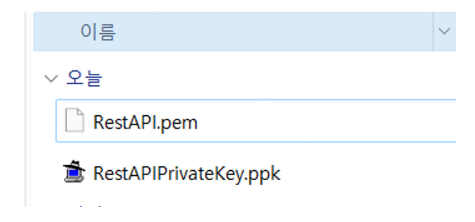
Save private key 클릭 후 파일명 설정시 파일명.ppk 파일 생성

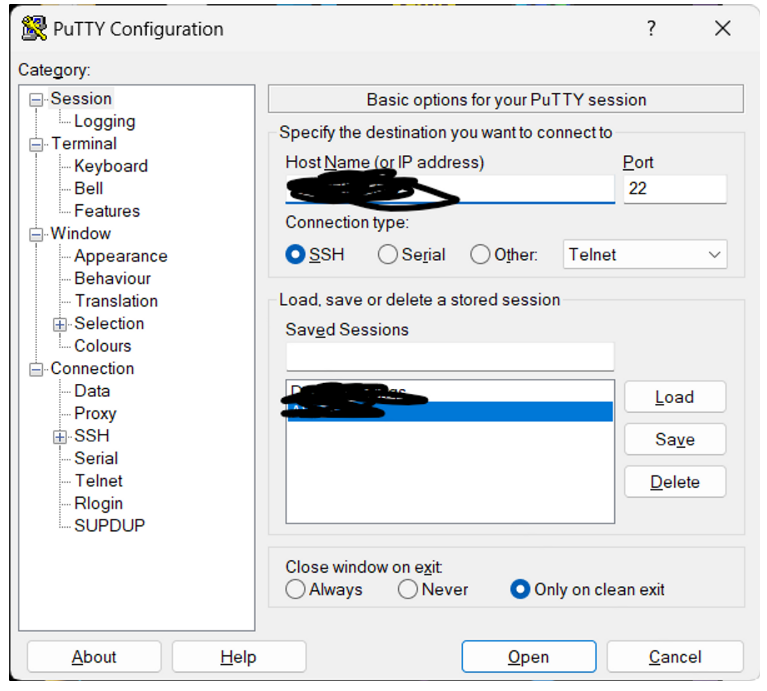
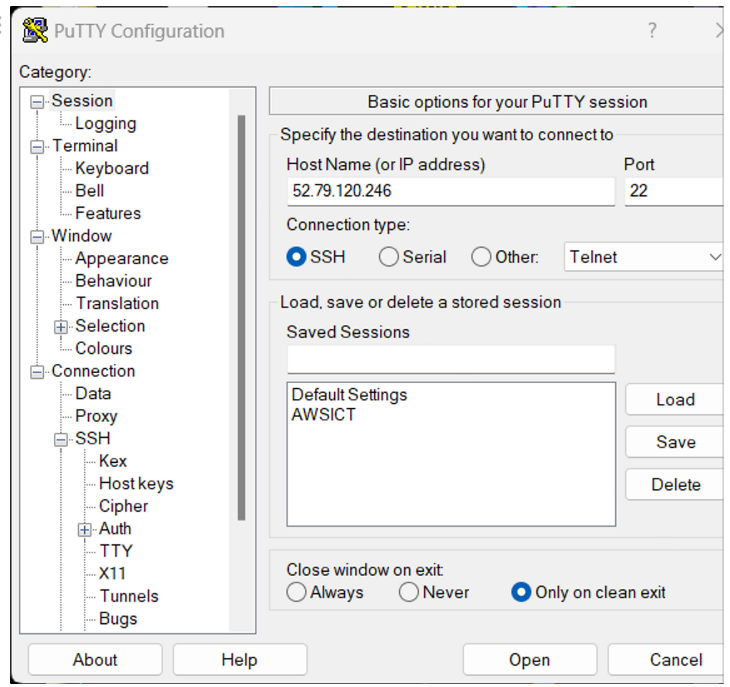
3. Putty 실행

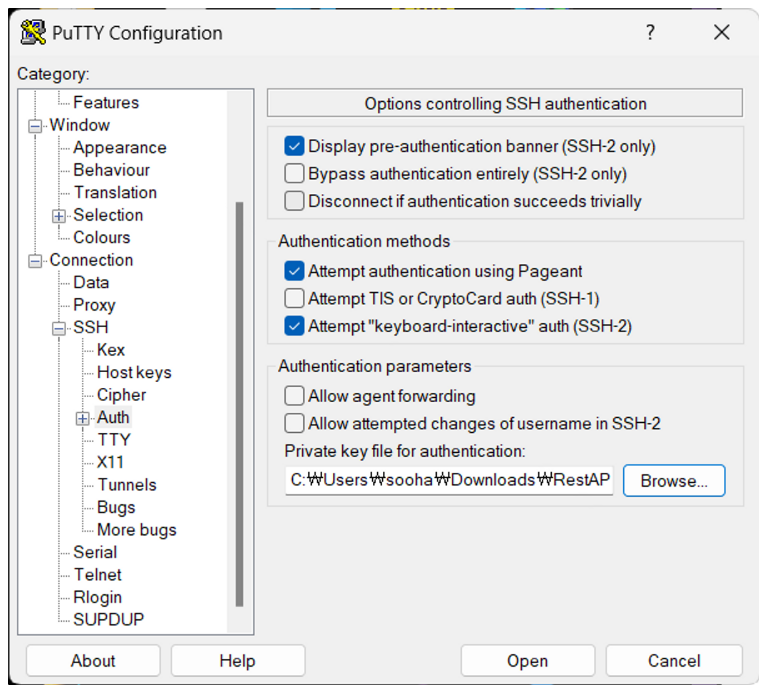
Browse 버튼을 통해 아까 생성한 .ppk 파일 선택

EC2 IP주소 입력 후 Open

Accept 클릭

ec2-user 입력시 접속이 되면 성공

3. EC2에 MySQL 설치

https://dev.classmethod.jp/articles/ec2-mysql-install-confilicting-requests-error-kr/
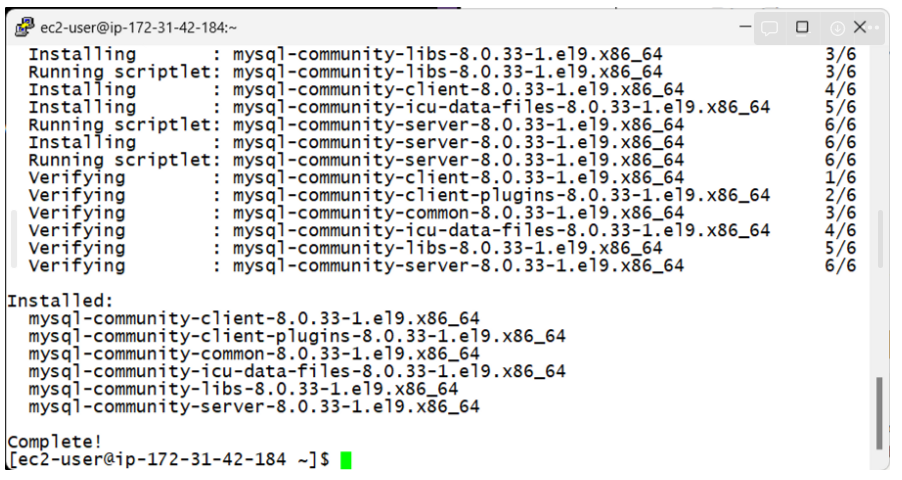
sudo dnf install https://dev.mysql.com/get/mysql80-community-release-el9-1.noarch.rpm
sudo dnf install mysql-community-server

해당 명령어 입력시 MySQL 설치 중간 중간 Y/N 을 물을 때 Y입력 

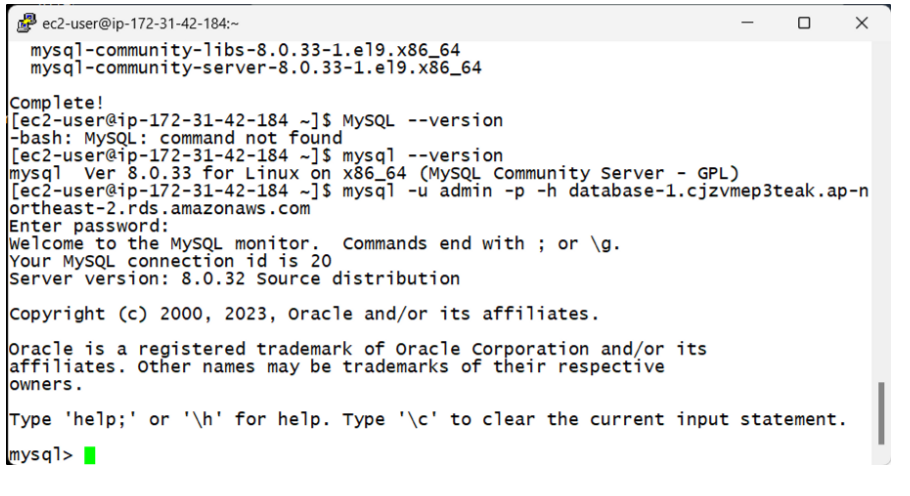
mysql —version 으로 설치가 잘 됬는지 확인

4. EC2를 통해 RDS 접속 후 사용할 DB생성

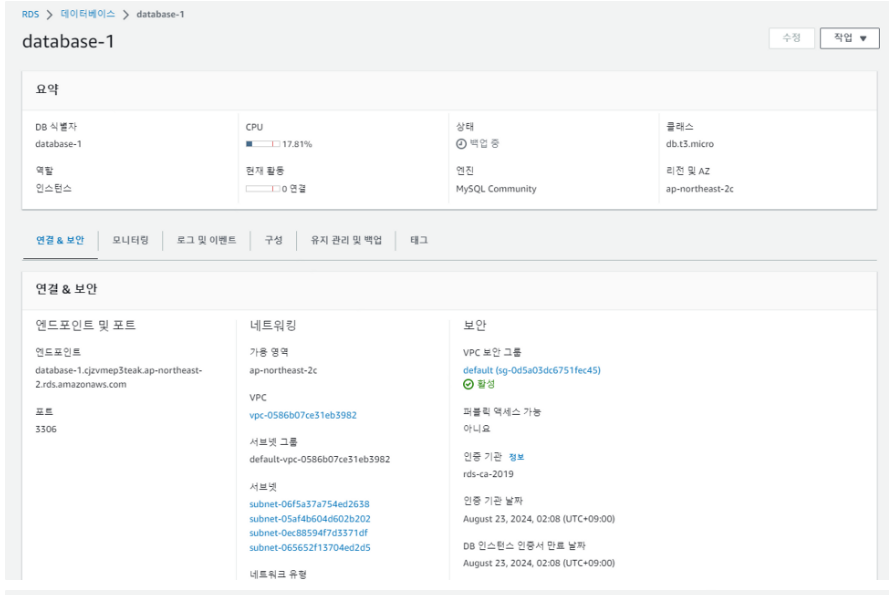
mysql -u {마스터 사용자 이름} -p -h {RDS 인스턴스 엔드포인트}
// 이후 패스워드 입력

4-2. RDS 데이터베이스 생성, 조회 SQL

CREATE database Medications default character set utf8mb4 collate utf8mb4_unicode_ci;

USE Medications;

CREATE TABLE Medications (
ID INT PRIMARY KEY,
medicationId VARCHAR(255),
NAME VARCHAR(255)
);
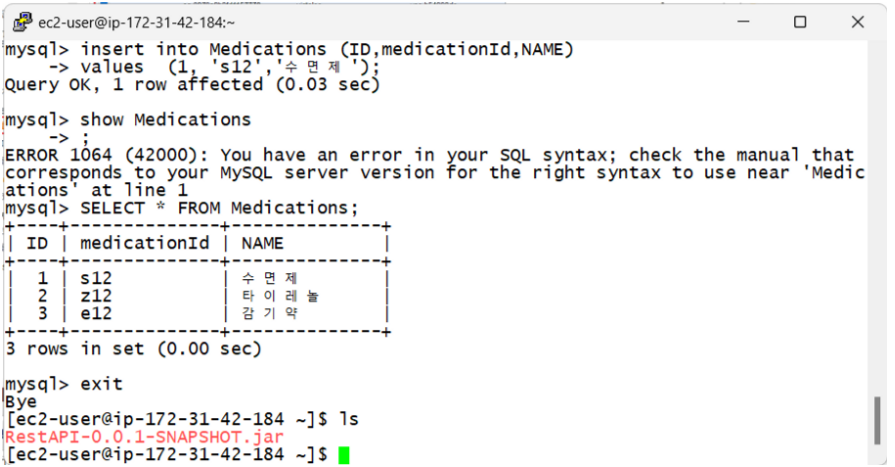
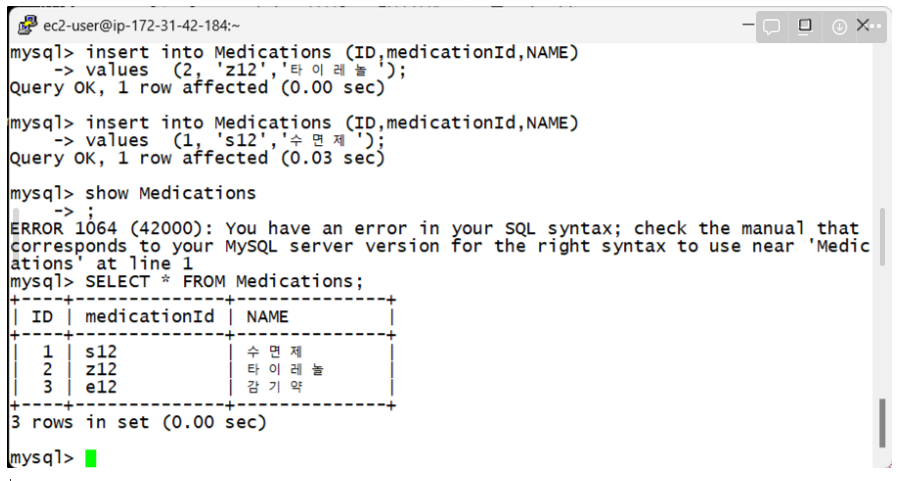
insert into Medications (ID,medicationId,NAME)
values  (3, 'e12','감기약');
insert into Medications (ID,medicationId,NAME)
values  (2, 'z12','타이레놀');
insert into Medications (ID,medicationId,NAME)
values  (1, 's12','수면제');
SELECT * FROM Medications;

exit명령어로 mysql 빠져 나오기

선행 요소: AWS 회원가입

1. AWS EC2 시작

주의!: 과금 요소가 생길 수 있으니 최대한 프리티어로 생성해야 한다.

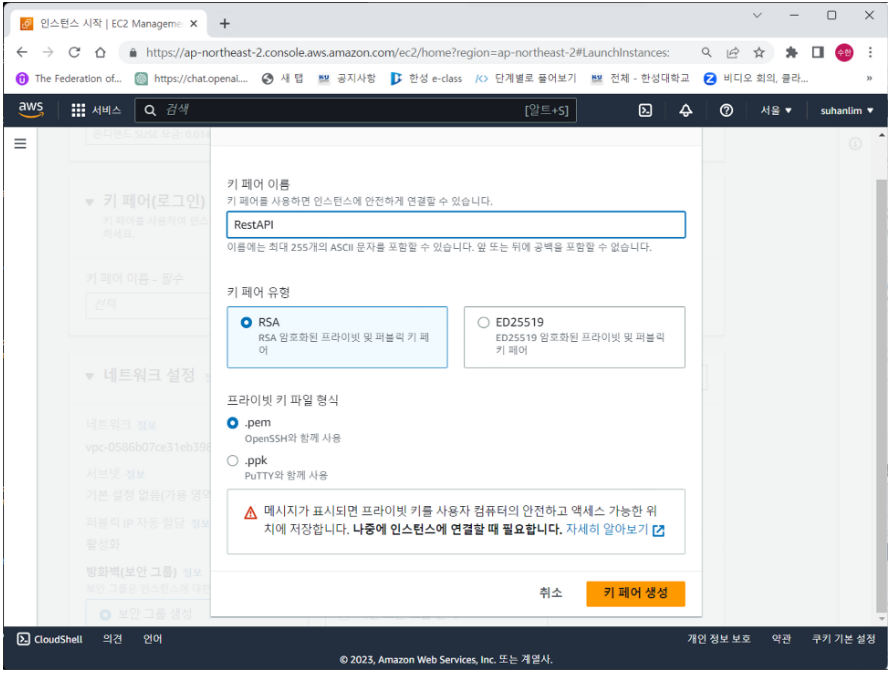
키 페어 생성시 RestAPI.pem 파일이 다운로드 되는데 이는 해당 EC2를 실행하는데 꼭 필요한 보안 파일 이기 때문에 삭제하지 말고 중요한 곳에 모셔두어야 한다.

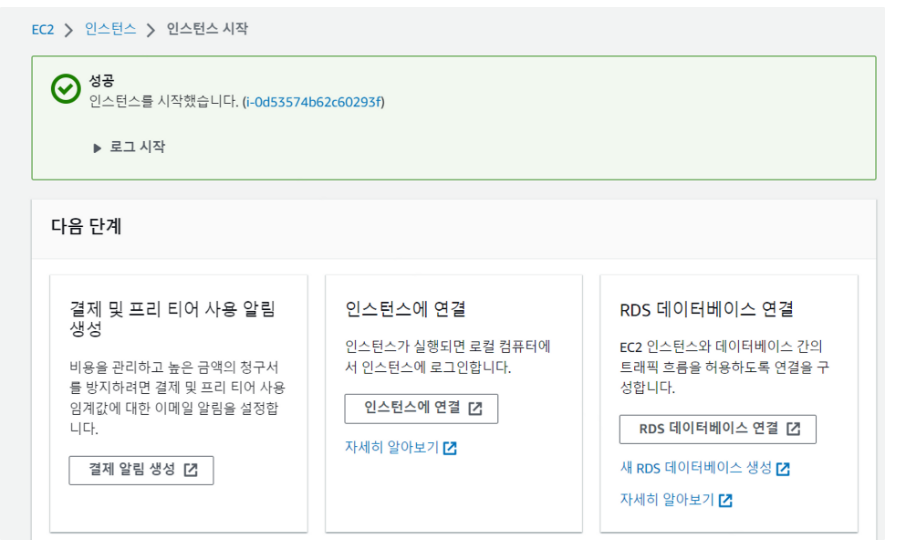
그 외 설정은 추가적으로 건드는 것 없이 인스턴스 시작

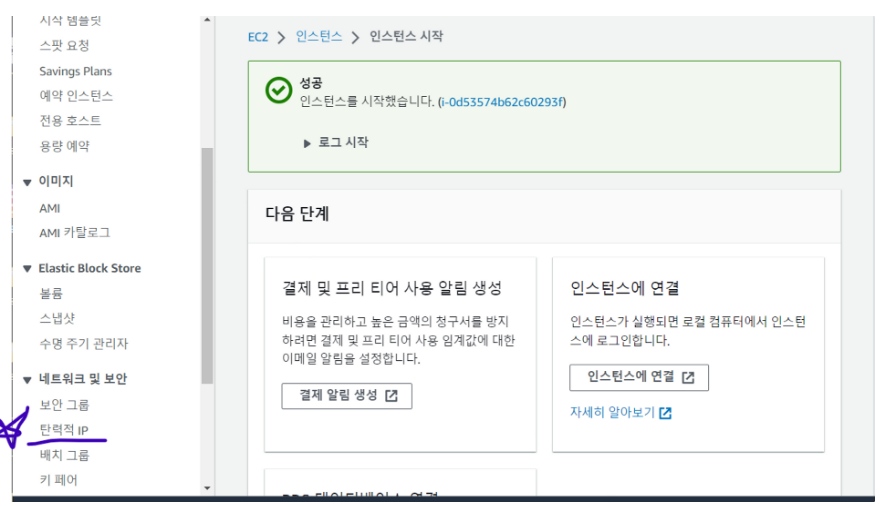
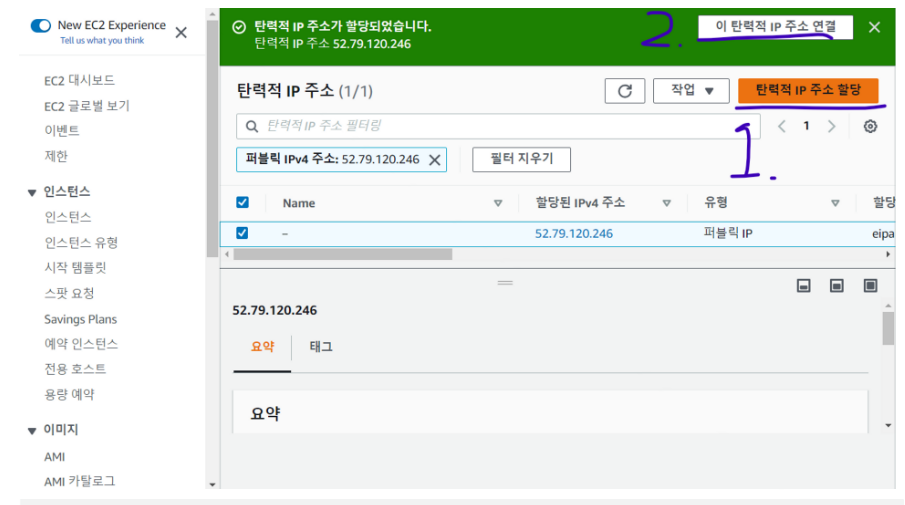
2. 탄력적 IP 할당

지금 실행 시킨 EC2는 새로 연결시 url이 바뀌기 때문에 이를 방지하기 위해서는 탄력적 IP를 할당하여 사용할 필요가 있다.

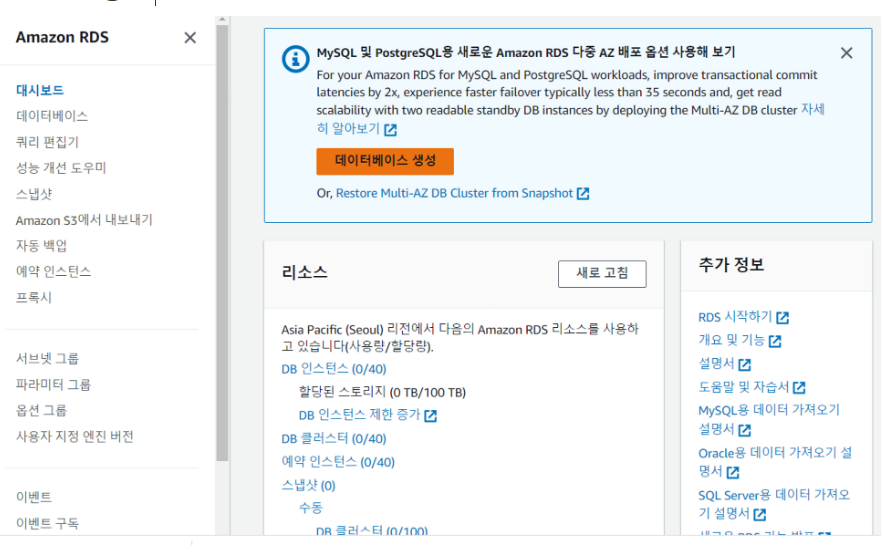
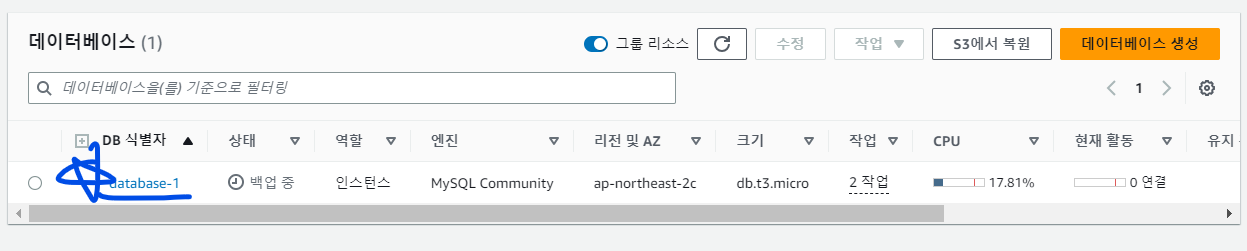
3. RDS 생성

가장 중요!!!: 반드시 RDS는 프리 티어로 만들어야 한다. 프로덕션, 개발/테스트 용도로 만들 경우 세팅도 프리티어와 다를 뿐 아니라 아무런 이용이 없다 해도 한 달 고정 비용이 많이 발생하기 때문

해당 비밀번호를 반드시 기억해야 한다.

이후 따로 설정을 건들지 않고 데이터 베이스 생성 버튼을 클릭한다.

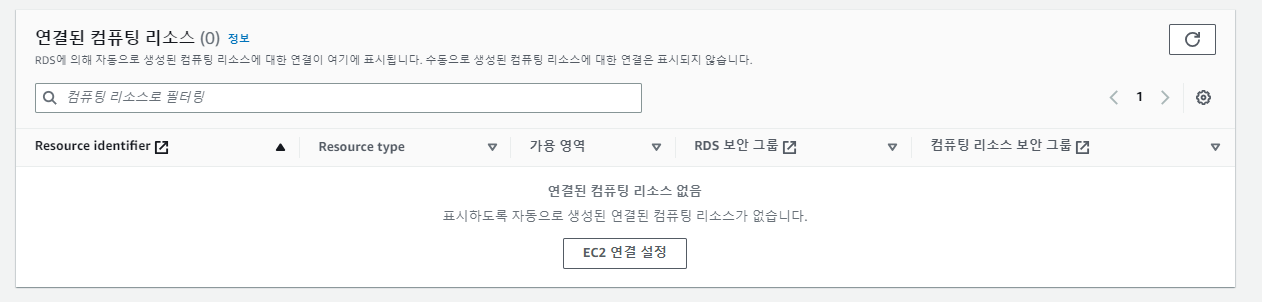
4. EC2, 데이터베이스 연결

작성 이유:

프로젝트를 처음 진행하면서 데이터 파이프라인 구축에 애를 먹었던 경험을 기록으로 남겨 쉽게 따라 할 수 있도록 방법을 공유하자는 취지로 글을 쓰게 됬다.

목표:

서버와 통신하여 데이터 베이스에 있는 정보를 읽어서 안드로이드 프로그램 화면 위에 띄우는 데이터 파이프라인 생성 

  1. 본인의 컴퓨터 안에서 localhost 내부에서 응답 처리
  2. AWS,RDS로 이전하여 작업 환경 구축

사용기술:

Android, Spring Boot, Gradle, JPA ORM, Mysql

전체 소스 코드:

https://github.com/suhanlim/RestAPI

1. Mysql

https://suhanlim.tistory.com/213


Android, Spring Boot, Mysql 데이터 파이프 라인 구축 실습 (Mysql) -1(완) 설치부터 스키마 생성까지

1. MySQL 다운로드 설치 중요!: 여기서 설정해둔 비밀번호는 따로 메모해두거나 꼭 암기해 두어야 한다. 2. MySQL Workbench 실행 후 연결 객체 생성 +버튼을 통해 새 연결 객체 생성 여기서 Username과 설

suhanlim.tistory.com

2. Spring Boot

https://suhanlim.tistory.com/214


Android, Spring Boot, Mysql 데이터 파이프 라인 구축 실습 (SpringBoot)-1 프로젝트 생성 및 클래스 작성

1. 프로젝트 생성 https://start.spring.io/ 2. 생성된 zip 파일 위치 설정 및 실행 로컬 디스크(c)로 이동 후 압축 해제 IntelliJ로 실행 3. controller, domain, repository로 분할 클래스,인터페이스 작성 MedicationsCont

suhanlim.tistory.com

https://suhanlim.tistory.com/215


Android, Spring Boot, Mysql 데이터 파이프 라인 구축 실습 (SpringBoot)-2(완) Mysql DB설정 (IntelliJ)

1. application.properties.yml 내용 추가 spring.datasource.url=jdbc:mysql://localhost:3306/Medications spring.datasource.username=testuser spring.datasource.password="스키마 생성시 설정한 비밀번호" spring.jpa.hibernate.ddl-auto=update 2. DB

suhanlim.tistory.com

3. Android

https://suhanlim.tistory.com/211


Android, Spring Boot, Mysql 데이터 파이프 라인 구축 실습 (Android)-1 프론트 UI 작업

1. Empty Activity 프로젝트 생성 2. Device Manager 추가 저는 미리 Create device 버튼을 통해 생성한 상태라 Pixel 4 API 33이 이미 존재하는 상태입니다. 3. app/res/layout/activity_main.xml 작업 4. 테스트 프로그램 실

suhanlim.tistory.com

https://suhanlim.tistory.com/212


Android, Spring Boot, Mysql 데이터 파이프 라인 구축 실습 (Android)-2(완) Rest API 통신 준비

1. 의존성 추가 Rest Api를 사용하는데 있어 다양한 라이브러리가 존재하지만 여기서는 가장 속도가 빠른 Retrofit를 사용할 계획이다. https://mvnrepository.com/artifact/com.squareup.retrofit2/converter-gson https://mv

suhanlim.tistory.com


4. AWS, RDS 배포

https://suhanlim.tistory.com/217


Android, Spring Boot, Mysql 데이터 파이프 라인 구축 실습 (AWS-EC2, RDS) -1 인스턴스 생성

선행 요소: AWS 회원가입 1. AWS EC2 시작 주의!: 과금 요소가 생길 수 있으니 최대한 프리티어로 생성해야 한다. 키 페어 생성시 RestAPI.pem 파일이 다운로드 되는데 이는 해당 EC2를 실행하는데 꼭 필

suhanlim.tistory.com

https://suhanlim.tistory.com/218


Android, Spring Boot, Mysql 데이터 파이프 라인 구축 실습 (AWS-EC2, RDS) -2 EC2 접속 및 DB 생성

1. EC2 실행 (인스턴스 실행) 2. Puttygen, Putty 다운로드 후 Puttygen 실행 https://www.puttygen.com/download-putty https://www.puttygen.com/ EC2 생성시 만들었던 .pem 파일 선택 Save private key 클릭 후 파일명 설정시 파일

suhanlim.tistory.com

https://suhanlim.tistory.com/219


Android, Spring Boot, Mysql 데이터 파이프 라인 구축 실습 (AWS-EC2, RDS) -3(완) JAR 파일 생성 및 실행

1. Spring-Boot JAR 파일로 내보내기 자세한 설명은 해당 링크 참조: https://suhanlim.tistory.com/192 만약 GitHub에 있는 코드 그대로 사용시 해당 오류가 발생할 수 있는데 프로그램의 단위테스트 자체가 실

suhanlim.tistory.com


1. application.properties.yml 내용 추가

spring.datasource.url=jdbc:mysql://localhost:3306/Medications
spring.datasource.username=testuser
spring.datasource.password="스키마 생성시 설정한 비밀번호"
spring.jpa.hibernate.ddl-auto=update

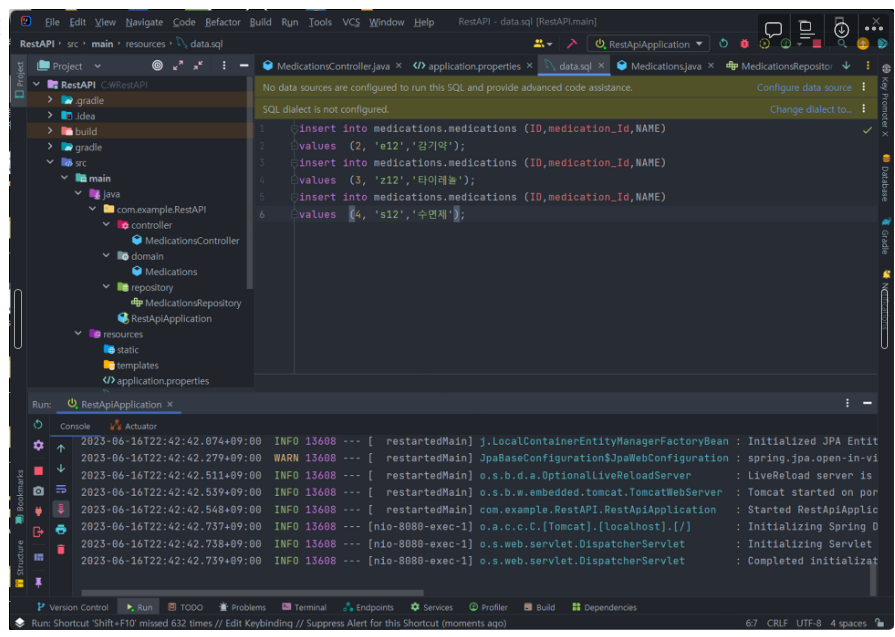
2. DB에 삽입할 테스트 sql 문 data.sql

insert into medications.medications (ID,medication_Id,NAME)
values  (2, 'e12','감기약');
insert into medications.medications (ID,medication_Id,NAME)
values  (3, 'z12','타이레놀');
insert into medications.medications (ID,medication_Id,NAME)
values  (4, 's12','수면제');

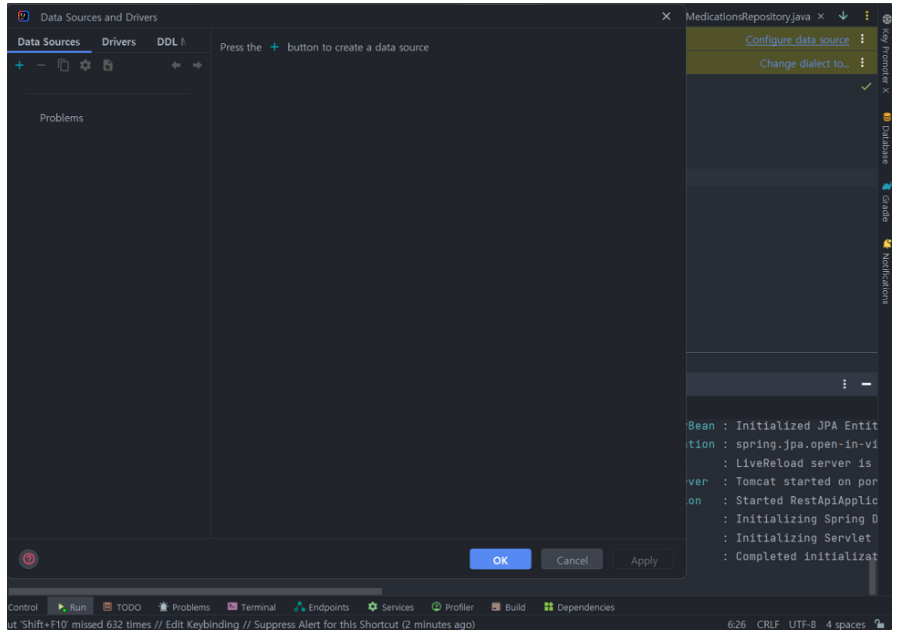
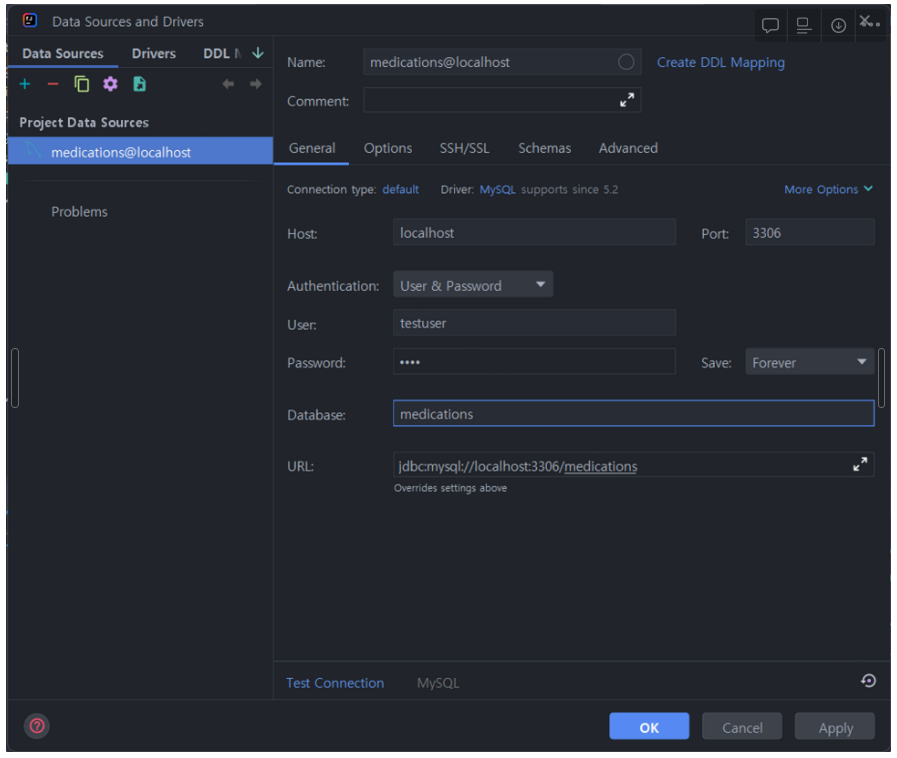
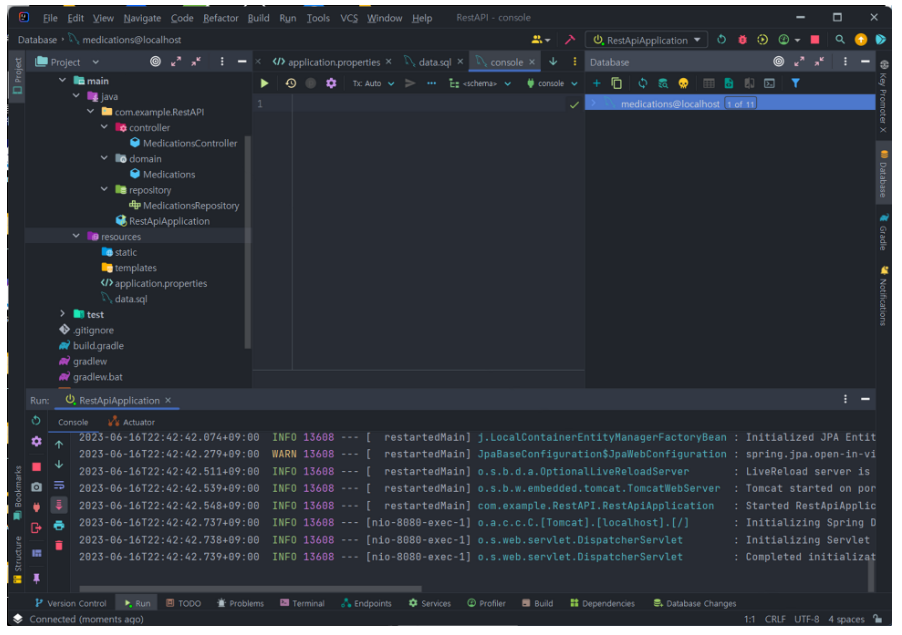
3. DB 연결

아이디, 비밀번호, DB명 입력

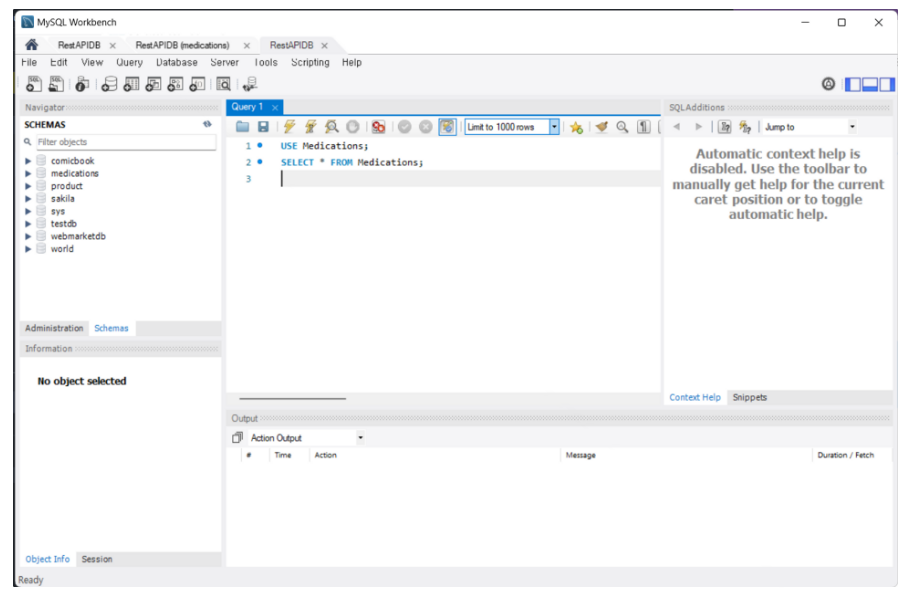
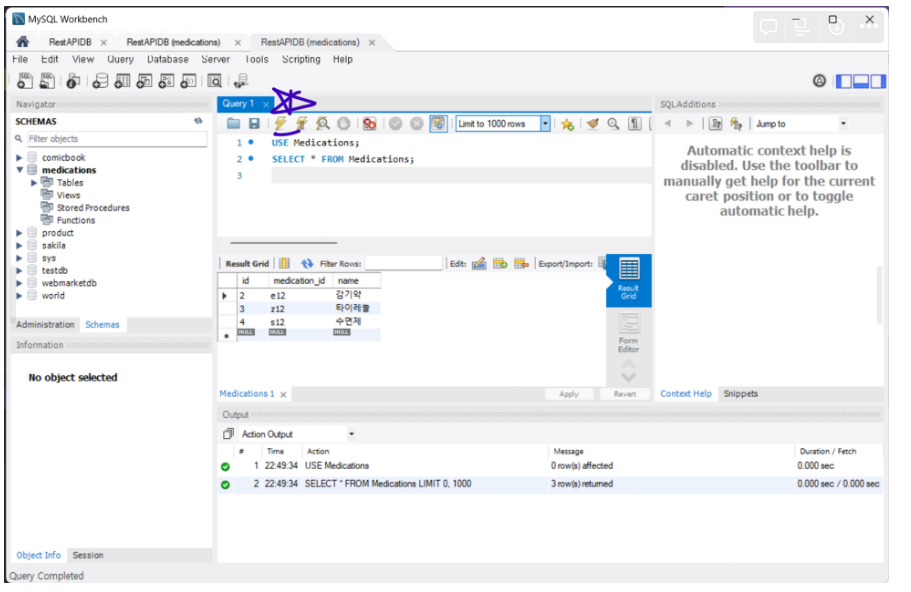
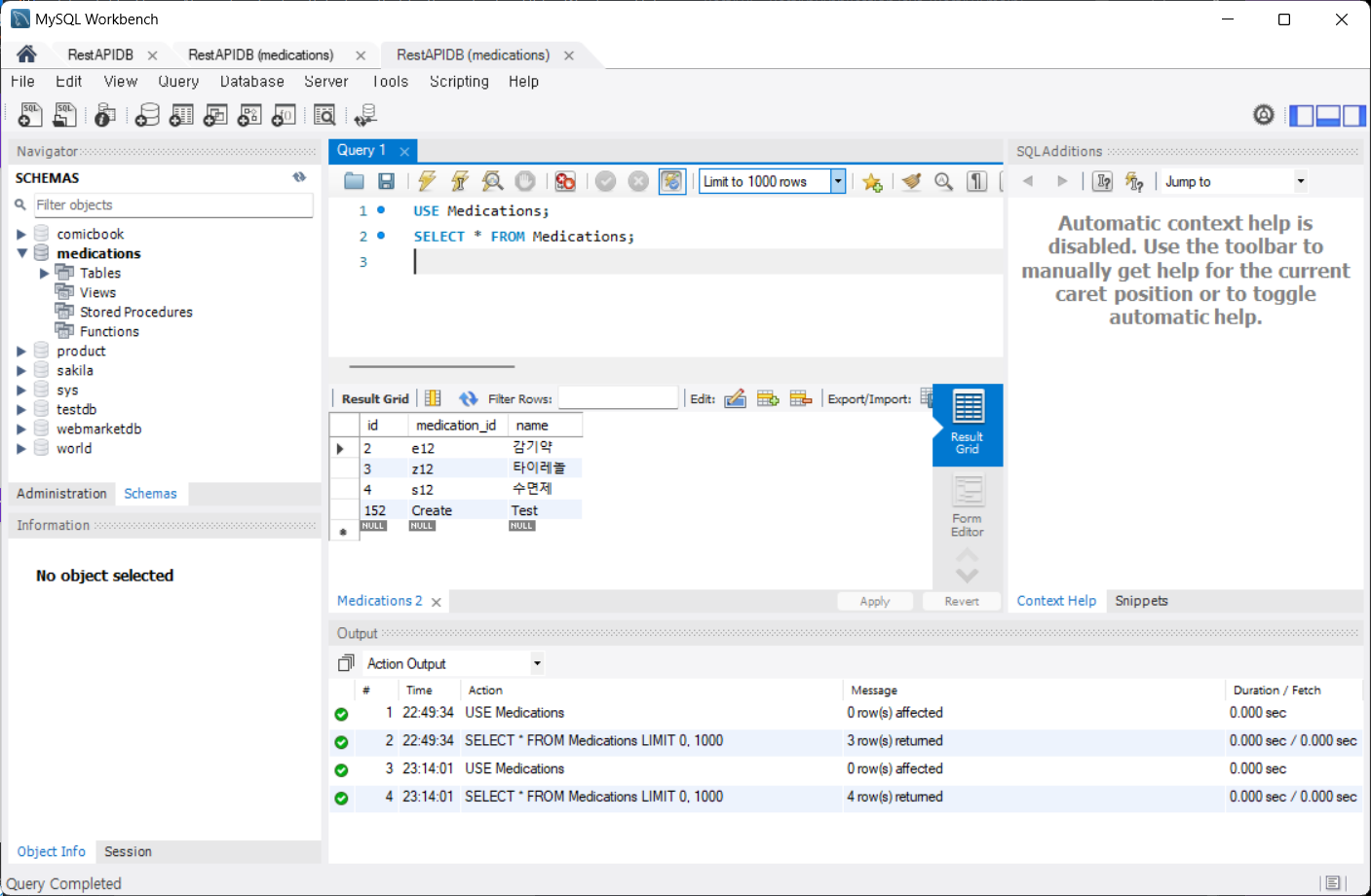
Insert 작업이 완료 되었나 select 문을 통해 MySQL Workbench에서 확인

USE Medications;
SELECT * FROM Medications;

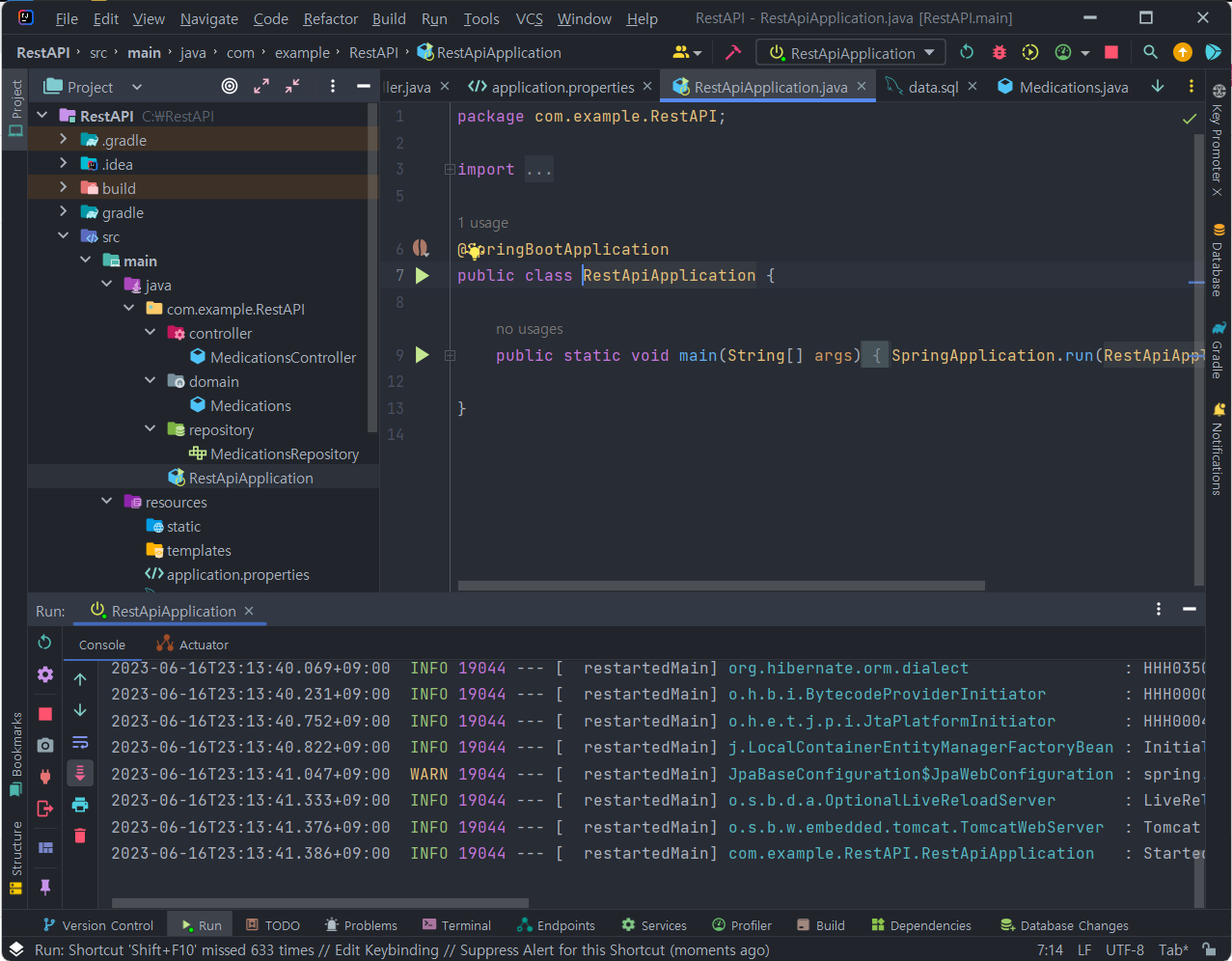
4. 추가 테스트

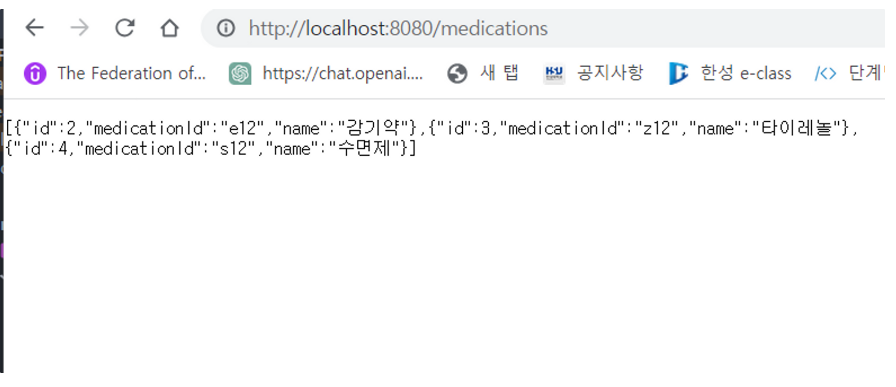
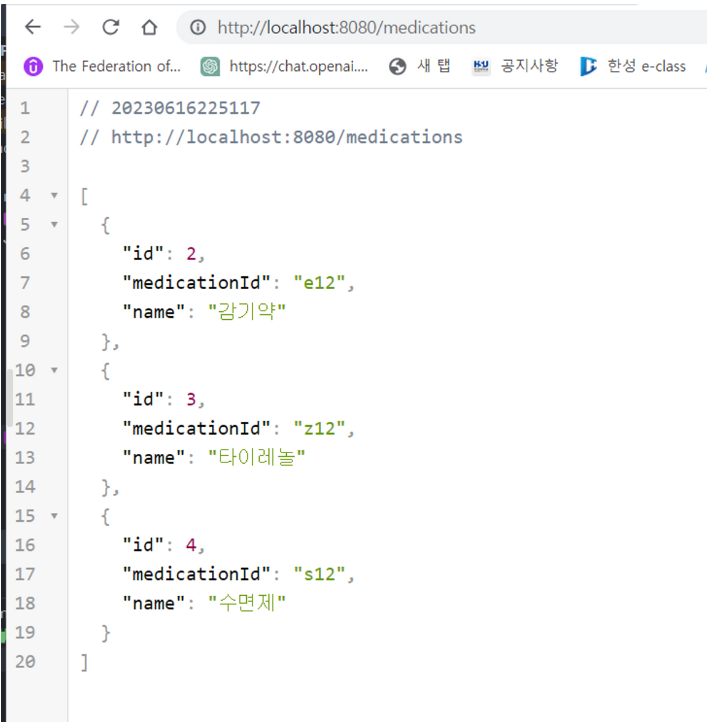
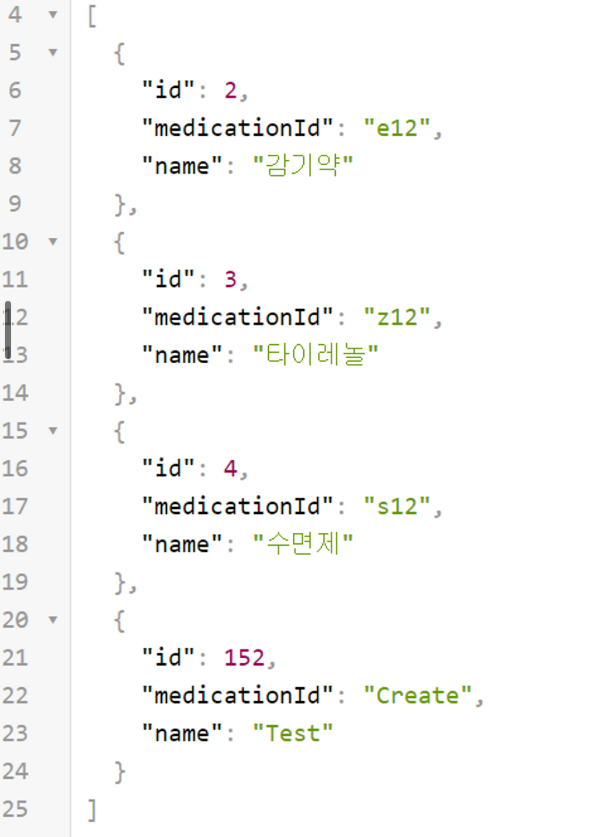
http://localhost:8080/medications

https://chrome.google.com/webstore/detail/json-viewer/gbmdgpbipfallnflgajpaliibnhdgobh?hl=ko

JSON Viewer를 쓴 모습

API Tester 확장 플러그인을 사용하여 Create 작업이 잘 되는지 확인 다른 API 테스트 툴이 있다면 그걸 사용해도 무방하다.

https://chrome.google.com/webstore/detail/talend-api-tester-free-ed/aejoelaoggembcahagimdiliamlcdmfm?hl=ko


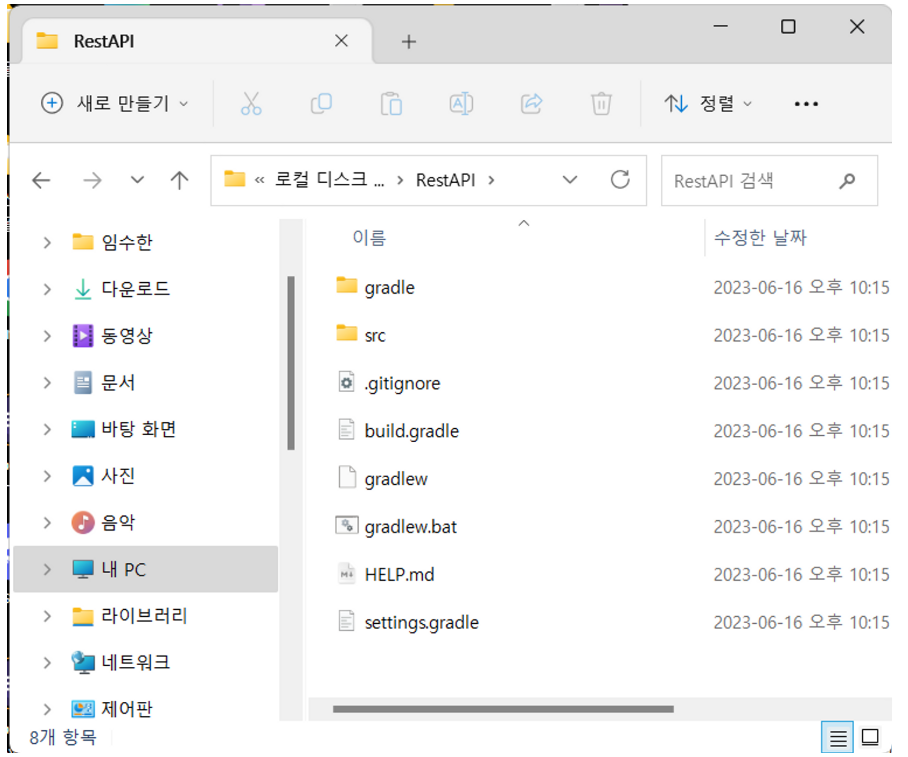
1. 프로젝트 생성

https://start.spring.io/

2. 생성된 zip 파일 위치 설정 및 실행

로컬 디스크(c)로 이동 후 압축 해제

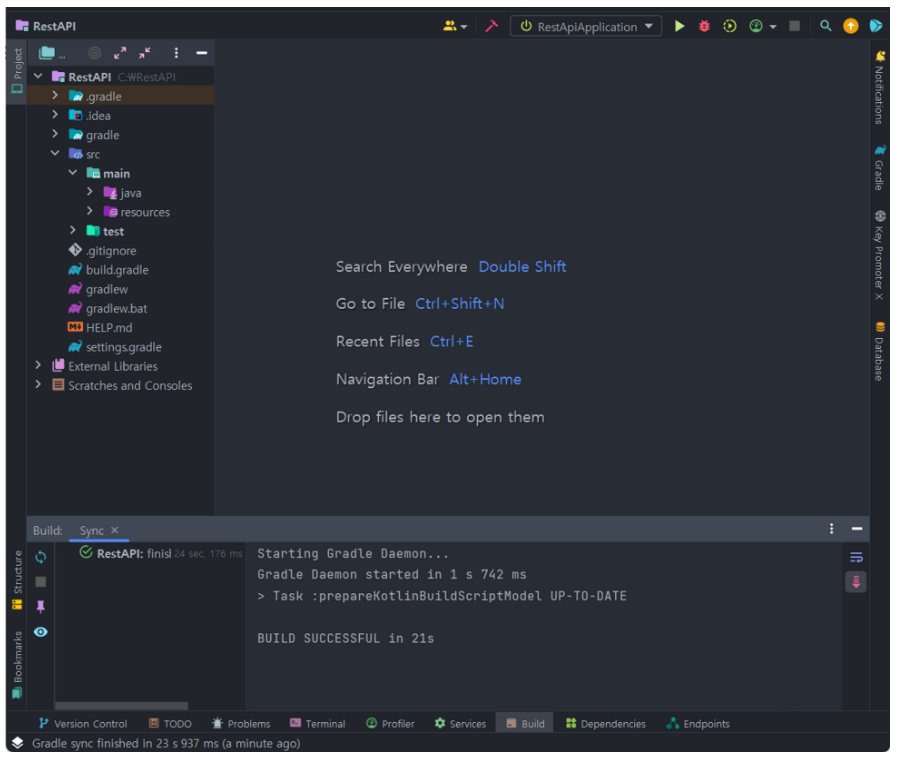
IntelliJ로 실행

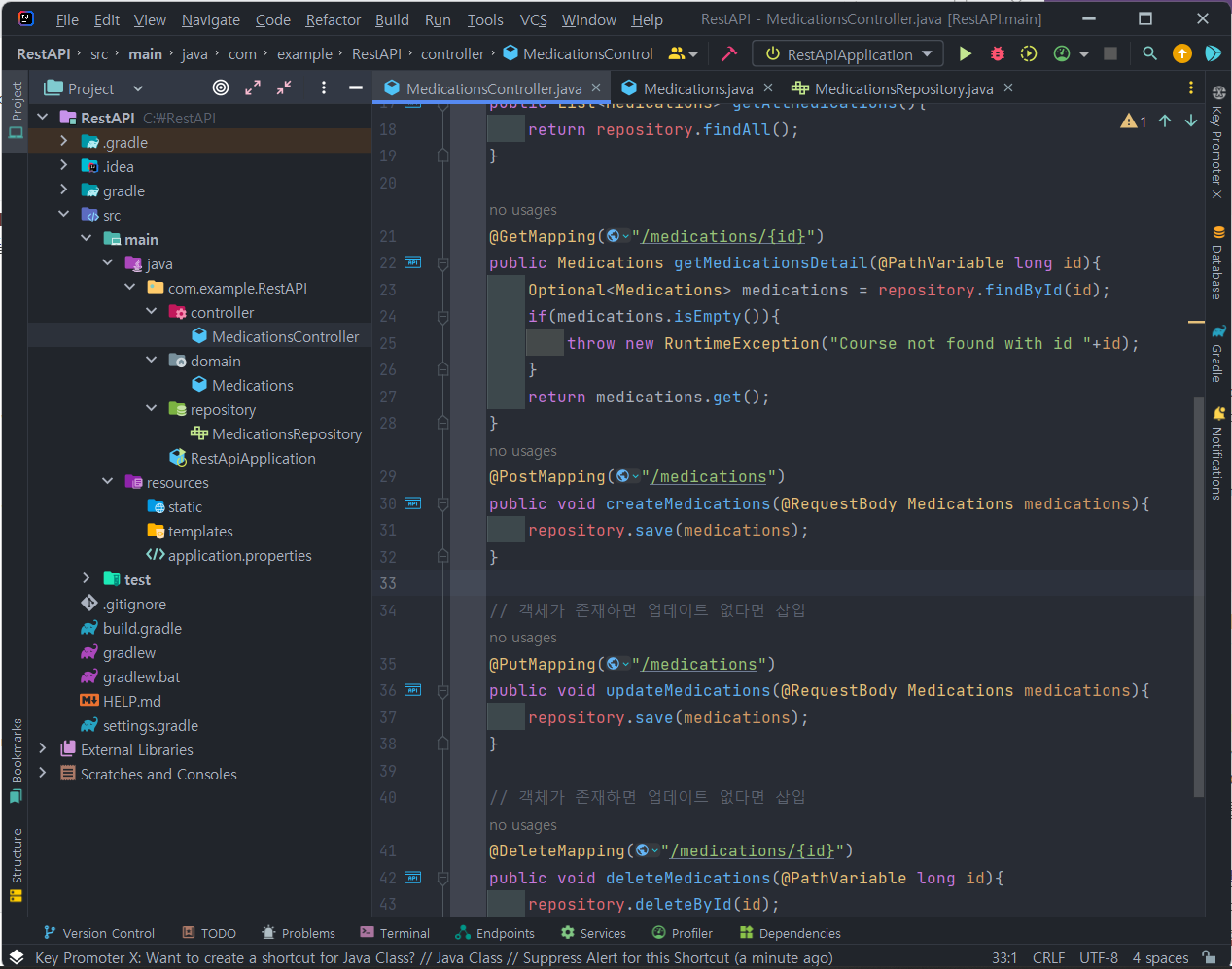
3. controller, domain, repository로 분할 클래스,인터페이스 작성

MedicationsController.java

package _PF026.DrDrug.controller;

import _PF026.DrDrug.domain.Medications;
import _PF026.DrDrug.repository.MedicationsRepository;
import org.springframework.beans.factory.annotation.Autowired;
import org.springframework.web.bind.annotation.*;

import java.util.List;
import java.util.Optional;

@RestController
public class MedicationsController {
    @Autowired
    private MedicationsRepository repository;

    @GetMapping("/medications")
    public List<Medications> getAllMedications(){
        return repository.findAll();
    }

    @GetMapping("/medications/{id}")
    public Medications getMedicationsDetail(@PathVariable long id){
        Optional<Medications> medications = repository.findById(id);
        if(medications.isEmpty()){
            throw new RuntimeException("Course not found with id "+id);
        }
        return medications.get();
    }
    @PostMapping("/medications")
    public void createMedications(@RequestBody Medications medications){
        repository.save(medications);
    }

    // 객체가 존재하면 업데이트 없다면 삽입
    @PutMapping("/medications")
    public void updateMedications(@RequestBody Medications medications){
        repository.save(medications);
    }

    // 객체가 존재하면 업데이트 없다면 삽입
    @DeleteMapping("/medications/{id}")
    public void deleteMedications(@PathVariable long id){
        repository.deleteById(id);
    }

}

Medications.java

package _PF026.DrDrug.domain;

import jakarta.persistence.Entity;
import jakarta.persistence.GeneratedValue;
import jakarta.persistence.Id;
import lombok.Getter;
import lombok.Setter;

@Entity
@Getter @Setter
public class Medications {
    @Id @GeneratedValue
    private Long id;
    private String medicationId;
    private String name;
}

MedicationsRepository.java

package _PF026.DrDrug.repository;

import _PF026.DrDrug.domain.Medications;
import org.springframework.data.jpa.repository.JpaRepository;
import org.springframework.stereotype.Repository;

@Repository
public interface MedicationsRepository extends JpaRepository<Medications,Long> {

}

<Repository>를 만들때는 EntityManager와 JpaRepository 두 가지 다른 방법이 존재하는데 여기서는 간단한 CRUD연산만 필요 하므로 JpaRepository를 사용하였다.

  1. EntityManager를 사용: EntityManager는 JPA의 핵심 컴포넌트로, 엔티티를 관리하며 데이터베이스와의 모든 상호작용을 처리합니다. EntityManager를 사용하면 직접적으로 데이터베이스 작업을 제어할 수 있습니다. 복잡하고 세밀한 작업이 필요한 상황에서는 EntityManager를 사용하는 것이 좋을 수 있습니다. 하지만 EntityManager를 사용하면 코드가 복잡해질 수 있고, JPA를 깊이 이해해야 할 수 있습니다.
  2. JpaRepository를 상속: JpaRepository를 상속받는 Repository를 사용하면 CRUD 연산을 매우 쉽게 처리할 수 있습니다. JpaRepository는 기본적인 CRUD 메서드를 제공하며, 이를 상속받는 클래스는 이 메서드를 직접 사용할 수 있습니다. 또한, 메서드 이름으로 쿼리를 생성하는 기능을 제공하여 데이터베이스 작업을 매우 쉽게 만들어줍니다. JpaRepository를 사용하면 보일러플레이트 코드를 크게 줄일 수 있지만, 복잡한 쿼리나 특정 데이터베이스 작업을 처리하기 어려울 수 있습니다.


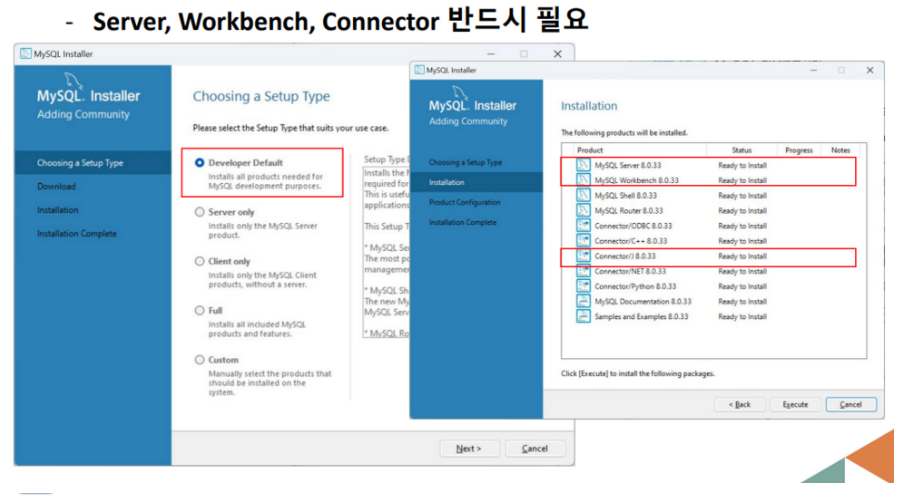
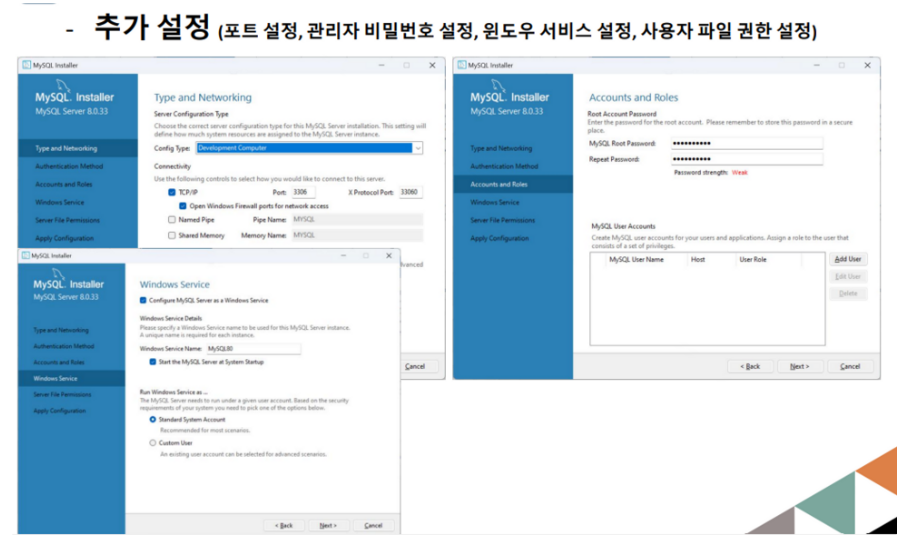
1. MySQL 다운로드 설치

중요!: 여기서 설정해둔 비밀번호는 따로 메모해두거나 꼭 암기해 두어야 한다.


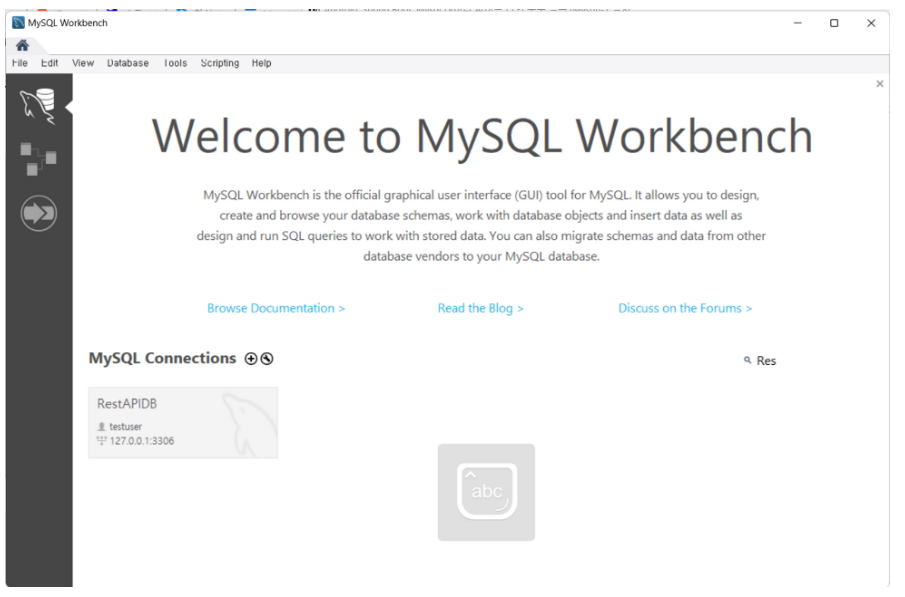
2. MySQL Workbench 실행 후 연결 객체 생성

+버튼을 통해 새 연결 객체 생성

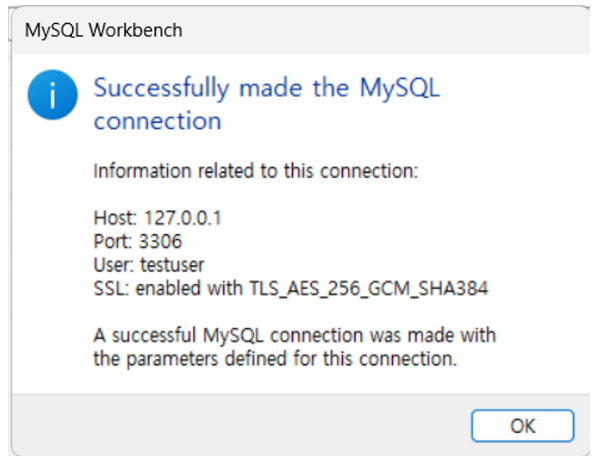
여기서 Username과 설정한 Password를 SpringBoot에서 연결 작업에 필요하기 때문에 따로 메모해두거나 꼭 암기해 두어야 한다.

Test Connection 버튼을 통해 연결이 잘 되는지 확인!

Ok 버튼을 통해 생성

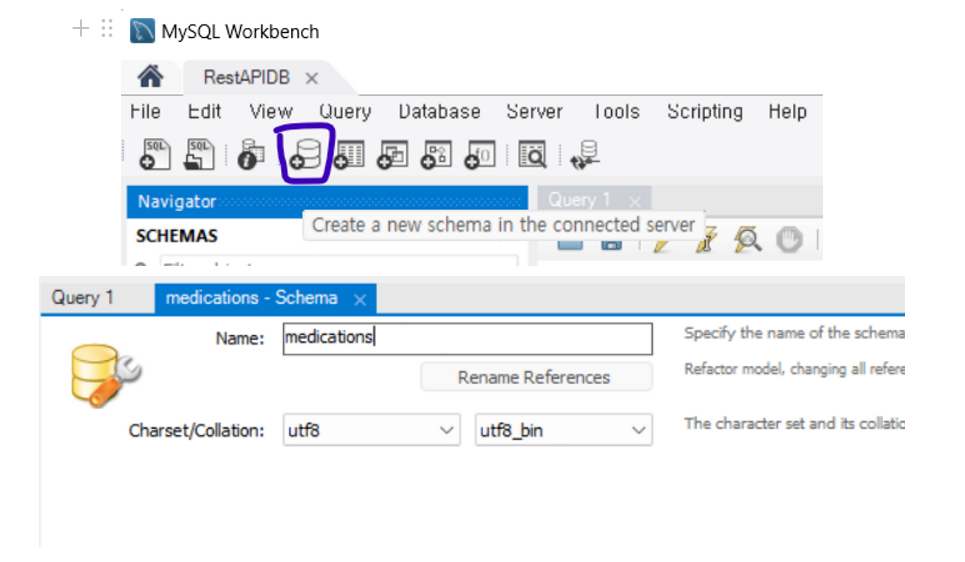
3. 사용할 DB Schema 생성

'CS > DataBase' 카테고리의 다른 글

오라클에서의 트랜잭션  (0) 2023.06.05
장애와 복구  (0) 2023.05.31
직렬 가능한 스케줄이 되도록 하는 방법  (0) 2023.05.31
동시성 제어  (0) 2023.05.22
트랜잭션  (0) 2023.05.19

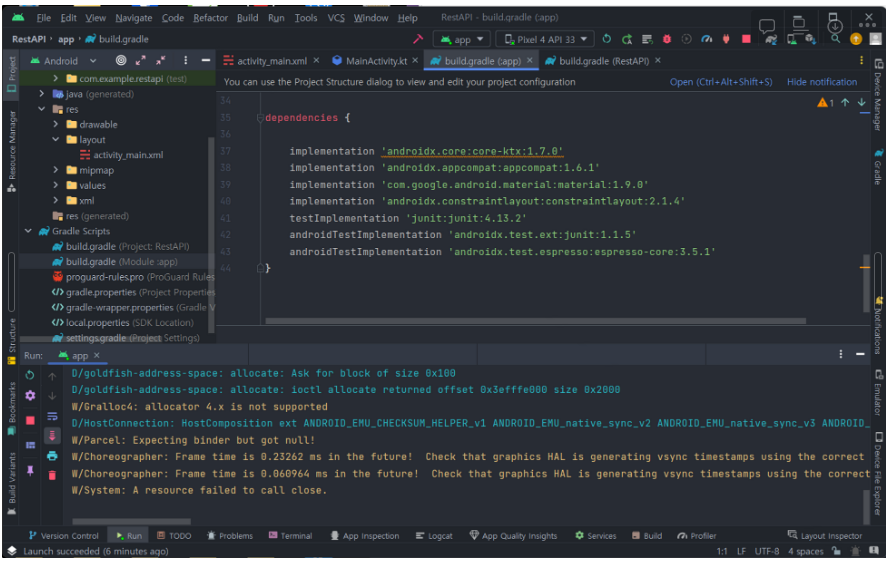
1. 의존성 추가

Rest Api를 사용하는데 있어 다양한 라이브러리가 존재하지만 여기서는 가장 속도가 빠른 Retrofit를 사용할 계획이다.

https://mvnrepository.com/artifact/com.squareup.retrofit2/converter-gson

https://mvnrepository.com/artifact/com.squareup.retrofit2/retrofit

해당 링크에서 최신 버전을 클릭 후 Gradle (Short)의 내용을 사용을 권장합니다.

implementation 'com.squareup.retrofit2:retrofit:2.9.0'
implementation 'com.squareup.retrofit2:converter-gson:2.9.0'

plugins {
    id 'com.android.application'
    id 'org.jetbrains.kotlin.android'
}

android {
    namespace 'com.example.restapi'
    compileSdk 33

    defaultConfig {
        applicationId "com.example.restapi"
        minSdk 23
        targetSdk 33
        versionCode 1
        versionName "1.0"

        testInstrumentationRunner "androidx.test.runner.AndroidJUnitRunner"
    }

    buildTypes {
        release {
            minifyEnabled false
            proguardFiles getDefaultProguardFile('proguard-android-optimize.txt'), 'proguard-rules.pro'
        }
    }
    compileOptions {
        sourceCompatibility JavaVersion.VERSION_1_8
        targetCompatibility JavaVersion.VERSION_1_8
    }
    kotlinOptions {
        jvmTarget = '1.8'
    }
}

dependencies {

    implementation 'androidx.core:core-ktx:1.7.0'
    implementation 'androidx.appcompat:appcompat:1.6.1'
    implementation 'com.google.android.material:material:1.9.0'
    implementation 'androidx.constraintlayout:constraintlayout:2.1.4'
    implementation 'com.squareup.retrofit2:retrofit:2.9.0'
    implementation 'com.squareup.retrofit2:converter-gson:2.9.0'
    testImplementation 'junit:junit:4.13.2'
    androidTestImplementation 'androidx.test.ext:junit:1.1.5'
    androidTestImplementation 'androidx.test.espresso:espresso-core:3.5.1'
}

위의 Sync Now 버튼 클릭

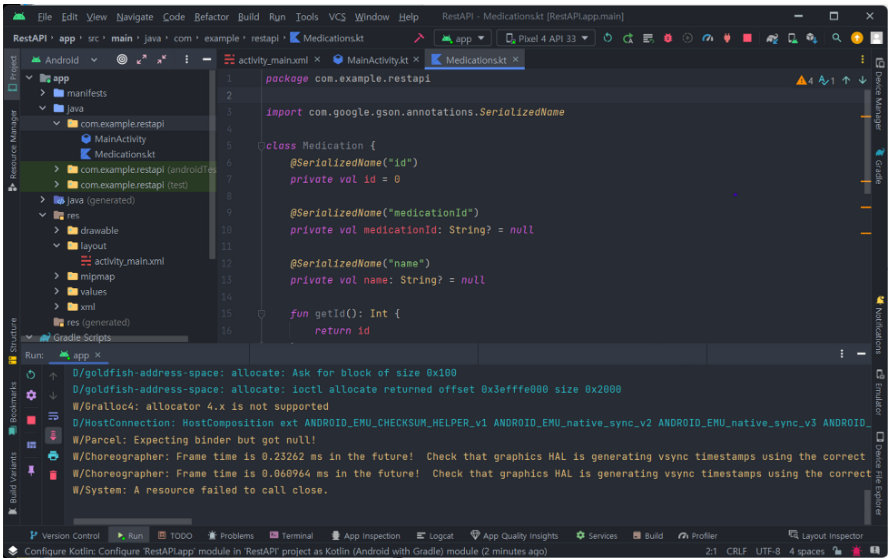
2. Entity용 코틀린 클래스 추가 (Medications)

Spring Boot와 Mysql 데이터 베이스에서 사용할 엔티티와 동일하게 맞추어야 함! (중요)

package com.example.restapi

import com.google.gson.annotations.SerializedName

class Medication {
    @SerializedName("id")
    private val id = 0

    @SerializedName("medicationId")
    private val medicationId: String? = null

    @SerializedName("name")
    private val name: String? = null

    fun getId(): Int {
        return id
    }

    fun getMedicationId(): String? {
        return medicationId
    }

    fun getName(): String? {
        return name
    }
    // toString()을 Override 해주지 않으면 객체 주소값을 출력함
    override fun toString(): String {
        return "Result{" +
                "id=" + id +
                ", body='" + medicationId + '\\'' +
                ", name='" + name + '\\'' +
                '}'
    }
}

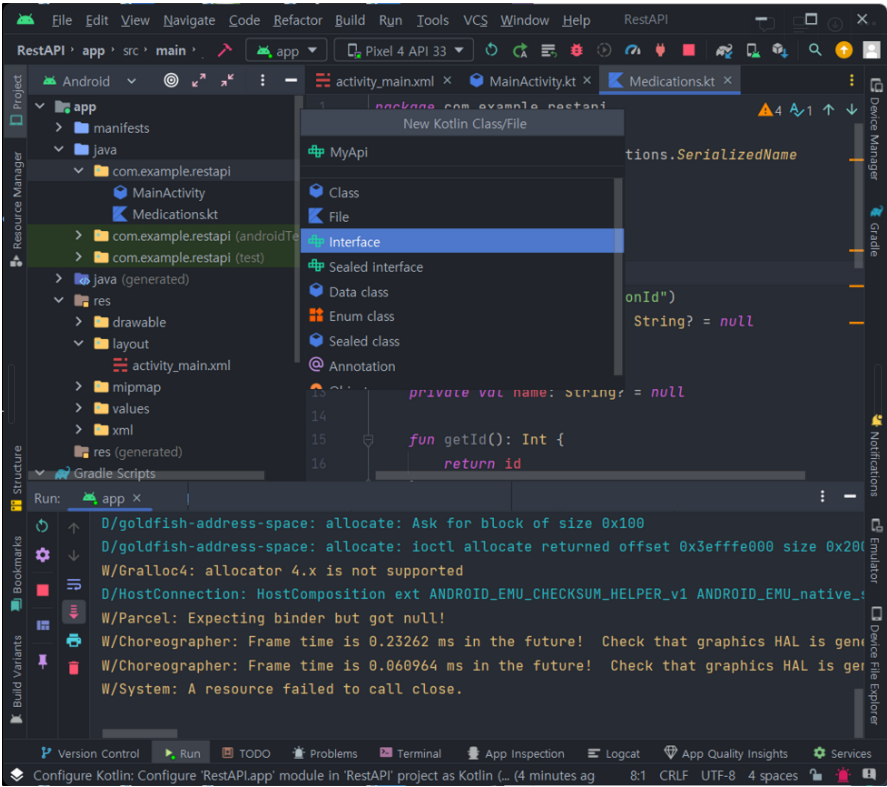
3. RestAPI용 인터페이스 생성

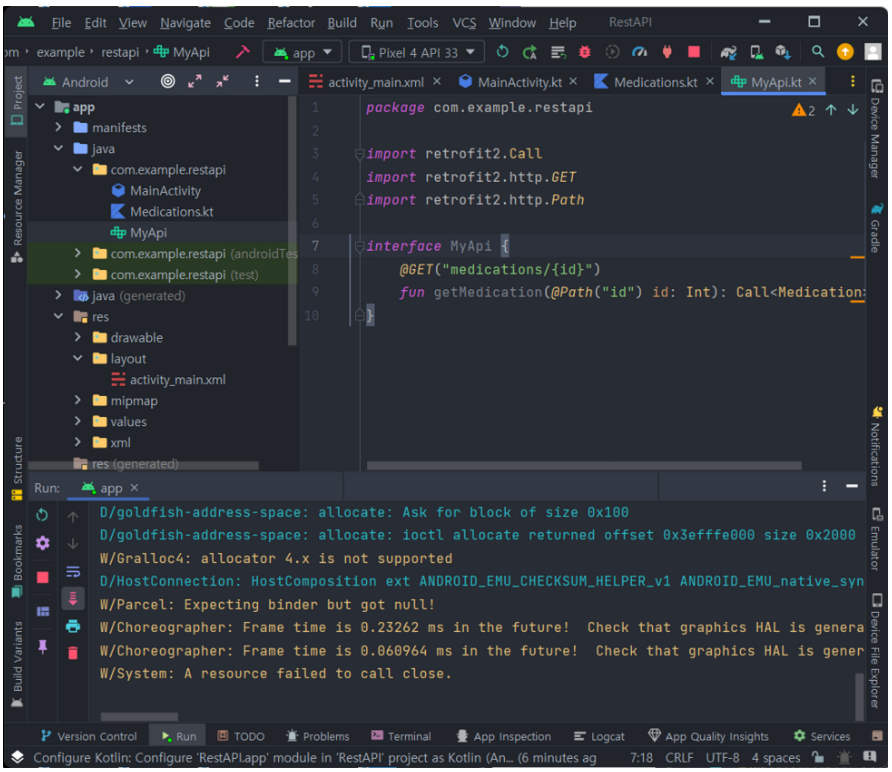
medications/id의 url을 통해 id 정보를 받아 데이터 베이스에서 해당 id의 스키마를 객체로 가져오도록 설계 (ORM)

package com.example.restapi

import retrofit2.Call
import retrofit2.http.GET
import retrofit2.http.Path

interface MyApi {
    @GET("medications/{id}")
    fun getMedication(@Path("id") id: Int): Call<Medication>
}

4. MainActivity 코드 작성

주의!: 서버를 우리가 사용하는 컴퓨터에서 직접 실행할 때 사용하는 http://localhost:포트번호(http://127.0.0.1:포트번호)를 사용하지 않고 특별한 url인 http://10.0.2.2:포트번호 을 사용해야 한다.

이유는 안드로이드 에뮬레이터는 본인의 컴퓨터와는 별도의 컴퓨터로 동작하기 때문이다.

그렇기에 본인의 컴퓨터를 가르키는 url을 사용하면 애뮬레이터에 접근 할 수 없기 때문에 우리는 안드로이드 애뮬레이터에서만 사용되는 특별한 주소 http://10.0.2.2:포트번호를 사용해야 한다.

+우리는 Spring-Boot 안에 내장되어 있는 톰캣 서버를 사용하기 때문에 8080 포트를 사용한다.

package com.example.restapi

import android.os.Bundle
import android.widget.Button
import android.widget.EditText
import android.widget.TextView
import androidx.appcompat.app.AppCompatActivity
import kotlinx.coroutines.CoroutineScope
import kotlinx.coroutines.Dispatchers
import kotlinx.coroutines.launch
import kotlinx.coroutines.withContext
import retrofit2.Retrofit
import retrofit2.converter.gson.GsonConverterFactory

class MainActivity : AppCompatActivity() {
		// url 정보 세팅
    private val api = Retrofit.Builder()
        .baseUrl("http://10.0.2.2:8080")
        .addConverterFactory(GsonConverterFactory.create())
        .build()
        .create(MyApi::class.java)

    override fun onCreate(savedInstanceState: Bundle?) {
        super.onCreate(savedInstanceState)
        setContentView(R.layout.activity_main)
				// 버튼을 클릭하면 editTextSelectId에 입력된 정수를 id로 사용하여 fectchData()함수를 사용한다.
        var button = findViewById<Button>(R.id.button).setOnClickListener {
            val id = findViewById<EditText>(R.id.editTextSelectId).text.toString().toInt()
            fetchData(id)
        }
    }
		// 서버를 통해 해당 id에 대응 하는 데이터베이스 스키마의 값을 가지고 온다.
    private fun fetchData(id:Int) {
        var textViewMedication = findViewById<TextView>(R.id.textViewMedicationId)
        var textViewName = findViewById<TextView>(R.id.textViewName)
        CoroutineScope(Dispatchers.IO).launch {
            val response = api.getMedication(id).execute()

            withContext(Dispatchers.Main) {
                if (response.isSuccessful) {
                    val medication = response.body()
                    if (medication != null) {
                        textViewMedication.setText(medication.getMedicationId())
                        textViewName.setText(medication.getName())
                    }
                } else {
                    // TODO: Handle error
                }
            }
        }
    }
}

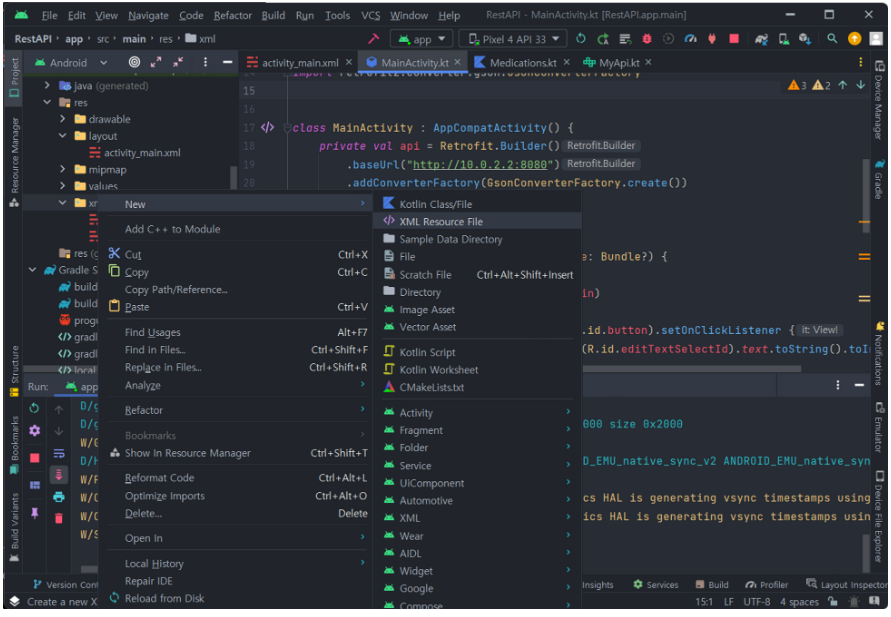
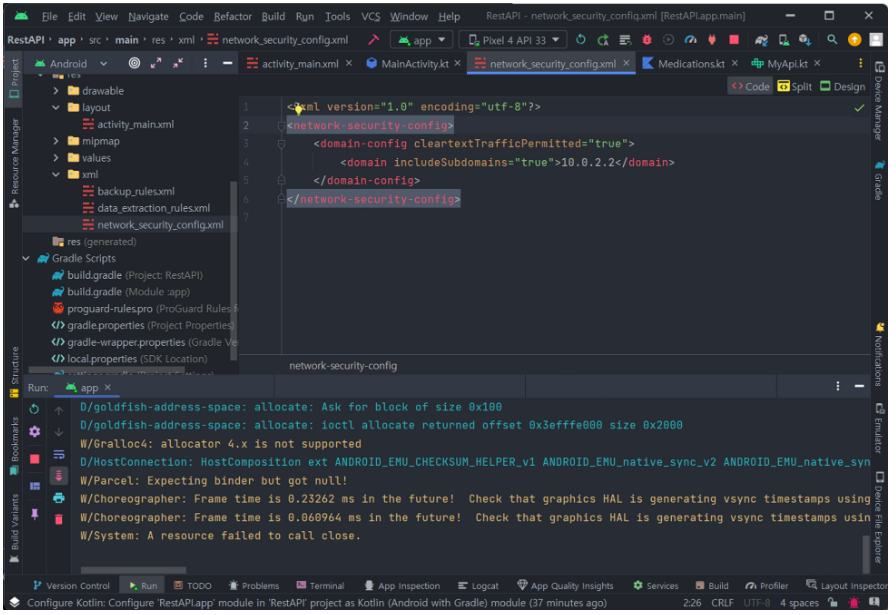
5. network_security_config.xml 작성

안드로이드 9(Pie) 이후 버전에서는 암호화되지 않은 네트워크 트래픽이 중간에서 가로채어질 수 있는 위험성을 줄이기 위해 HTTP 트래픽에 대한 접근을 기본적으로 차단한다.

따라서 개발자는 서버와 안드로이드 앱 간의 통신에 HTTPS를 사용해야 하는데 지금 개발 과정에서는 HTTPS를 설정하지 않은 로컬 서버를 사용하기 때문에 별도의 설정 파일로 HTTP 트래픽을 허용하도록 해야 한다.

<?xml version="1.0" encoding="utf-8"?>
<network-security-config>
    <domain-config cleartextTrafficPermitted="true">
        <domain includeSubdomains="true">10.0.2.2</domain>
    </domain-config>
</network-security-config>

6. AndroidMainfest.xml 파일 수정

위에서 작성한 예외 보안그룹의 정보를 설정파일에 입력해 주어야 한다.

<application
	.

	.
	.
	android:networkSecurityConfig="@xml/network_security_config"
	.
	.
	.
</application>

<추가한 뒤 전체 코드>

<?xml version="1.0" encoding="utf-8"?>
<manifest xmlns:android="http://schemas.android.com/apk/res/android"
    xmlns:tools="http://schemas.android.com/tools">
    <uses-permission android:name="android.permission.INTERNET" />
    <application
        android:allowBackup="true"
        android:dataExtractionRules="@xml/data_extraction_rules"
        android:fullBackupContent="@xml/backup_rules"
        android:icon="@mipmap/ic_launcher"
        android:label="@string/app_name"
        android:supportsRtl="true"
        android:networkSecurityConfig="@xml/network_security_config"
        android:theme="@style/Theme.RestAPI"
        tools:targetApi="31">
        <activity
            android:name=".MainActivity"
            android:exported="true">
            <intent-filter>
                <action android:name="android.intent.action.MAIN" />

                <category android:name="android.intent.category.LAUNCHER" />
            </intent-filter>
        </activity>
    </application>

</manifest>

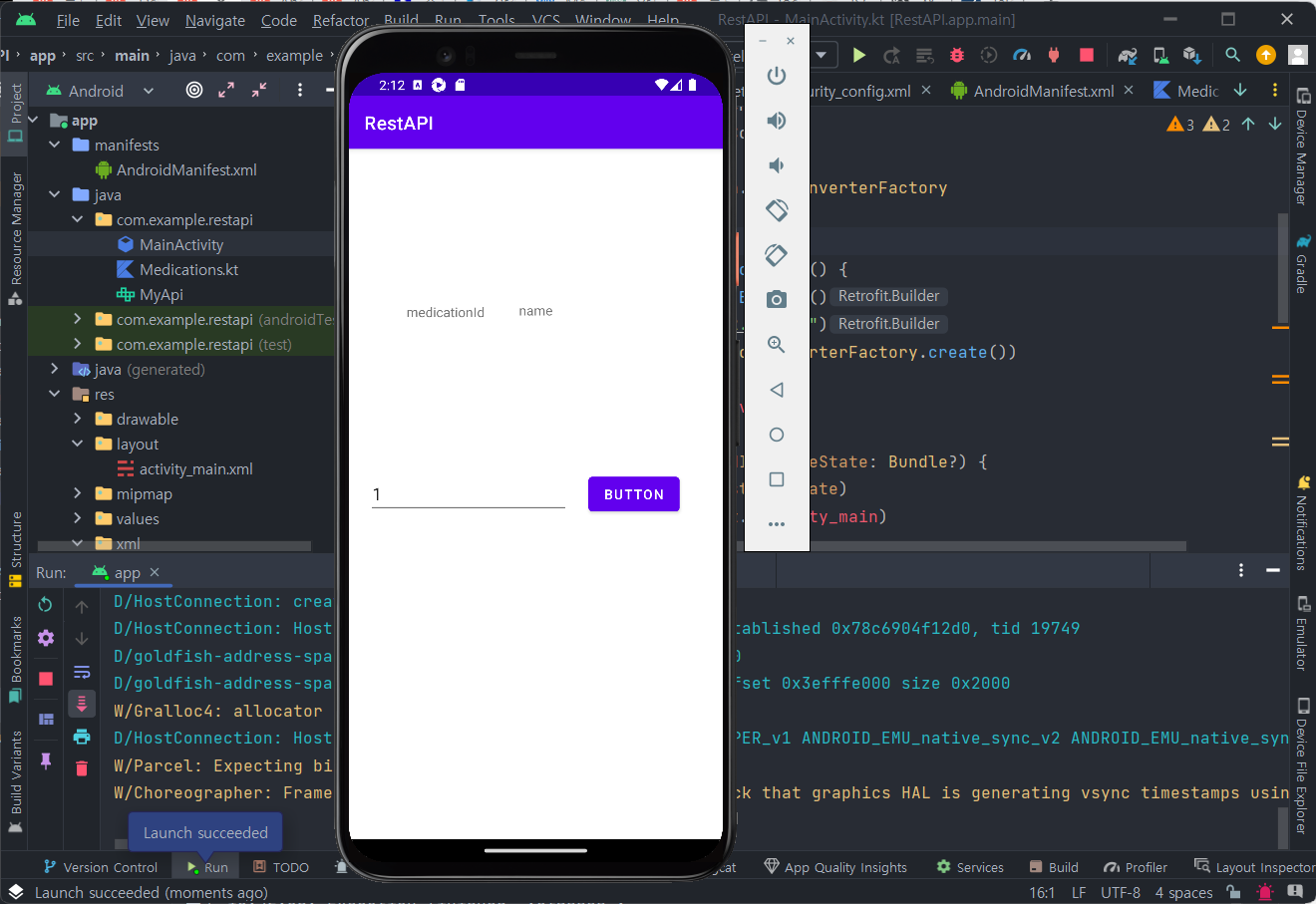
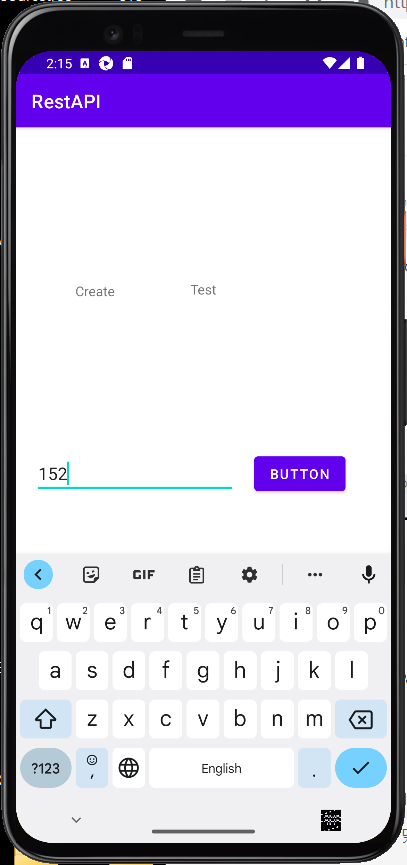
7. 안드로이드 프로그램 실행, Spring Boot 실행, MySQL Workbench 확인

성공!

+ Recent posts